build_websites_using_wordpress

HOW TO BUILT WEBSITES USING WORDPRESS

I consider you a beginner who wants to develop quality websites. I briefly discuss how to create a WordPress website, and why you choose WordPress as a development platform. I have written this article with the latest techniques and updated content.

I strongly believe after reading this article without skipping any step you can build your WordPress websites today. 

In the video, didn’t find what you were looking for? Read the article below.

Reasons why you choose WordPress for developing websites

USER-FRIENDLY INTERFACE

WordPress stands out for its intuitive and user-friendly interface, catering to both new and experienced developers. An easy-to-navigate dashboard with a visual editor makes content management and customization a seamless process. This accessibility enables users to efficiently control their websites without requiring extensive technical skills.

THEMES FOR ANY PURPOSE

In WordPress you will find hundreds of free themes installing these will enhance your website's user experience. These themes not only enhance the visual appeal of your site but also ensure optimal functionality.

RESPONSIVE WEBSITES

Websites created in WordPress are responsive which means these websites change the layout for different screen sizes (mobile, tablet, desktop computer) which makes your website user-friendly on any device.

EASY TO LEARN

WordPress is comparatively most easiest and least difficult to handle. You as a beginner need one or less than one week to run a fully operative website. This is the main reason why you should choose WordPress over other coding-based platforms.

ROBUST ECOSYSTEM OF PLUGINS

Plugins expand the capability of your website Whether you need advanced SEO tools, social media integration, or e-commerce functionality, there's a plugin for virtually every need.

Steps on "how to create a WordPress website"

There are 3 simple steps by which you can create fully functional WordPress websites.

  1. BUYING HOSTING and BUYING DOMAIN
  2. INSTALL WORDPRESS ON THAT DOMAIN
  3. BUILD YOUR WEBSITE

Step1: Buy a Web Hosting along with a Domain name

Buying hosting is the only expense you have to do in this article on how to create a WordPress website.

What is Domain Name and what is its role?

A "domain name" is simply known as your website address. As you have a name similarly a website also needs a name to be called by users. This name is called a domain name. For example, Google has its domain name www.google.com.

What is Hosting and what is its role?

Simply "hosting" means a webspace where your website will reside. As in your computer text files, images or other files take some space in your PC's hard drive, similarly, a website has some files to be stored and we have to make it accessible to the users 24/7 that is why we have to purchase a web hosting from a hosting provider.

NOTE: "domain name" can be purchased from any provider but "hosting" should be bought from a well-known hosting provider like Hostinger, Godaddy, A2hosting, etc, because everything is directly or indirectly dependent on your website's hosting like the website's speed, performance, user experience, security and your website's google ranking etc. Here in this guide, we'll use "Hostinger" to host our website.

Steps to buy WEB HOSTING

Enter your browser's address bar hostinger.in and then click on hosing -> web hosting

  1. Select a plan you want to purchase. I suggest you click on the Premium plan as you can create 100 websites in a single purchase or select the Single plan (only 1 website) as per your requirement. Now, click on the Add to Cart button and you will be redirected to the next page.
  2. Now, choose the time period, for which you want to buy the hosting. I suggest you either go for the 12 or 48 MONTHS because of the renewal price and respectively you can also see the amount at the bottom.

    Now, in 2nd step, you have to create an account on Hostinger by entering an "email id" and "password".

    Note: This email ID and Password must be remembered because, by this ID and password, you can log in later into your Hostinger account.
  3. Lastly, you have to select a payment method and will be displayed according to your country (Paypal, net banking, card, Google Pay, etc)
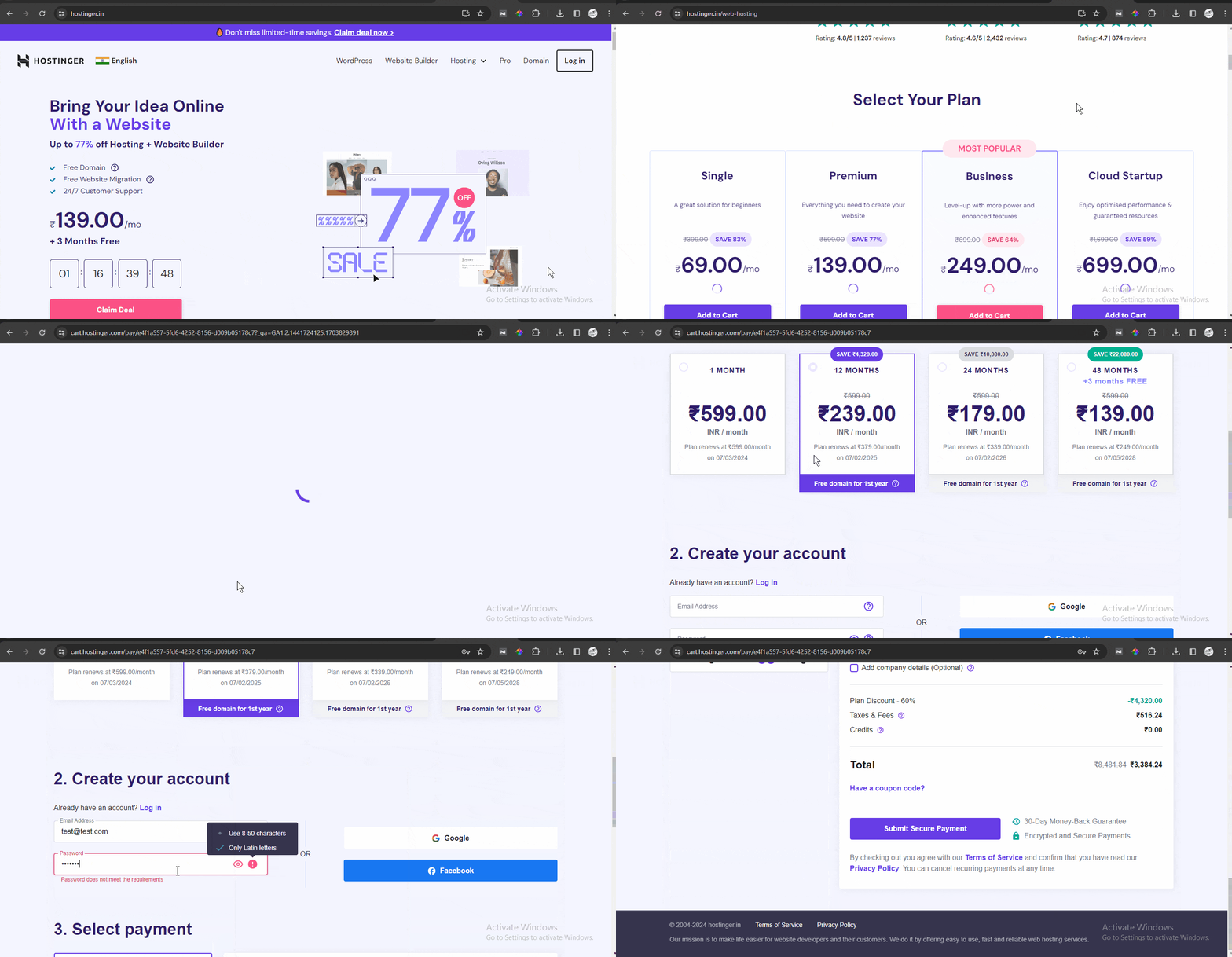
On a successful payment, Hostinger will send you your login credentials along with a password to your registered email address.

Note: if you purchased the premium plan then Hostinger provides you with one domain for free for one year. That is one of the reasons why I recommend you to buy hosting from Hostinger and they also provide hosting for an affordable price comparatively.

Don’t worry I will tell you “how to buy a new domain” if you want to build another website later.

Steps to buy DOMAIN NAME

Now Let's buy a domain name.

Domain does not affect your website's performance thus can be bought from any provider. Here I'll tell you the steps to buy a new domain from "GoDaddy"  

  1. Go to GoDaddy's website www.godaddy.com. Enter your desired domain name in the search box.
  2. Then, click on the search domain button and Godaddy's server will immediately start searching if that domain name is available or not.
  3. If available, click on Make it Yours then Continue it will redirect you to the next page.
  4. Select the appropriate options as per your need like domain protection, a custom email address. I suggest you choose No Domain Protection in the Protect your domain area and No Thanks in the custom email address area, because from Hostinger you can create your professional email address for free. Now, click on Continue to Cart button. 
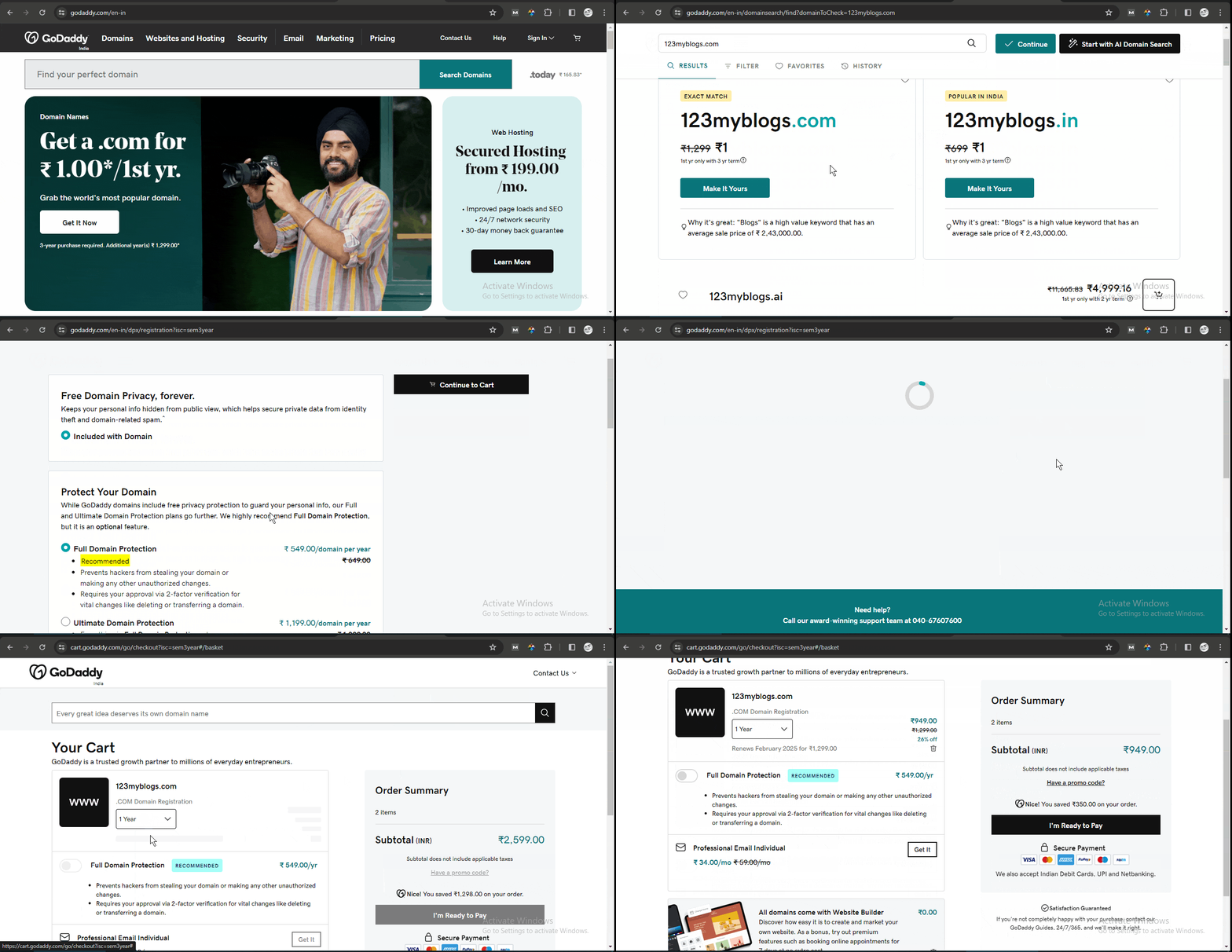
On making a successful payment, the domain name will be yours for the time duration you have selected.

NOTE: To access the new domain from the Hosting account, you have to change the DNS record of that domain. To know how to change DNS(domain name servers) records of a domain read this article. 

Step2: Installing WordPress

Now, first login into your Hostinger account. After successful login, you can see the screen below. This is your hosting account dashboard, they call it "hPanel". From here you will manage your domains, website hosting, and email accounts.
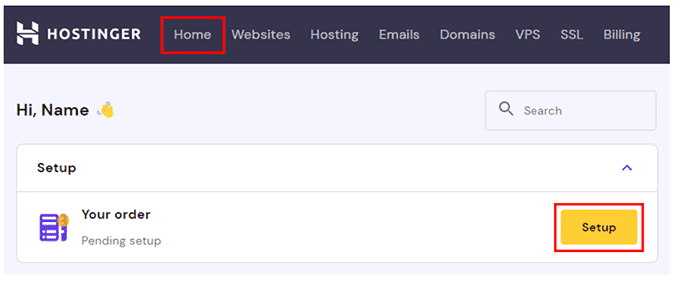
Next, start setting up your hosting plan. Click on the Setup button to continue.

Then, you will be prompted to create a new website or migrate an existing website, simply click on Skip, create an empty website button.
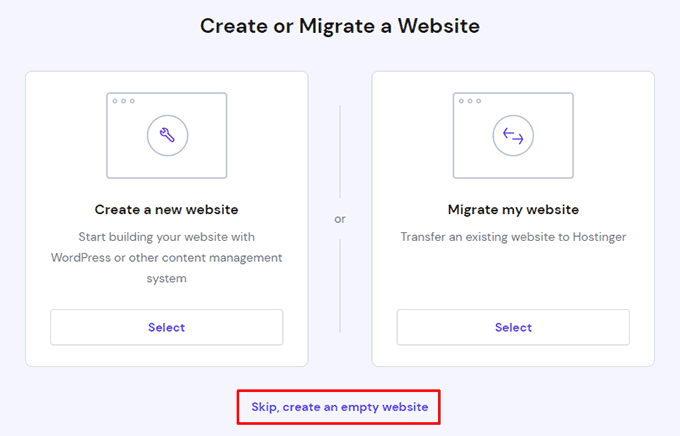
 

Do not worry, you can migrate your existing website later.

Claim your free Domain

Now, click on the Select button under the "Claim a Free Domain" section.
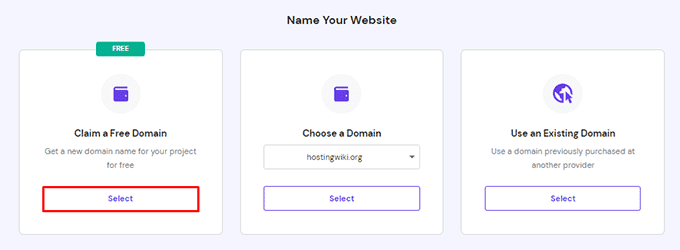
Simply enter the domain name you want to use and click on Continue.

If the domain name is available, Hostinger will register it for you and add it to your account. Now, you’ll see a new window. 

Note: You can also read my article on how to Use an Existing Domain.

Install WordPress

Click on the Add Website button from the Websites tab. Select WordPress from there. A new window will open and select your website type.

Then enter your Website credentials and click on continue -> Skip, I will manage plugins later -> Skip, I don't need a template -> Skip, I will write content later.

In the next screen, choose from these 2 options, i)Buy a new domain from Hostinger or ii)Use an existing domain where your WordPress site will be installed. Please Note: if you are using "Existing Domain" then you have to update your domain name servers. I have already posted an article on this topic visit article.

Now, click on Continue and WordPress will start installing on that domain, it will take 1-2 minutes depending on your internet speed. After installation click on the Manage Site button from the Control Panel box to enter your website's Hpanel.

Note: Remember the "Administrator email" and "Administrator password" because this email/username and password will need later to log in to your website.

After installation, there are two ways to log in to your website’s Admin panel or website’s Dashboard. i) Type the the Domain name + front slash + wp-admin in your browser (eg: example.com/wp-admin). ii) Simply click on the Admin Panel button from Hostinger’s Hpanel.

Step3: Build Your Website

Now, first login into your Hostinger account. After successful login, you can see the screen below. This is your hosting account dashboard, they call it "hPanel". From here you will manage your domains, website hosting, and email accounts.

WordPress Dashboard
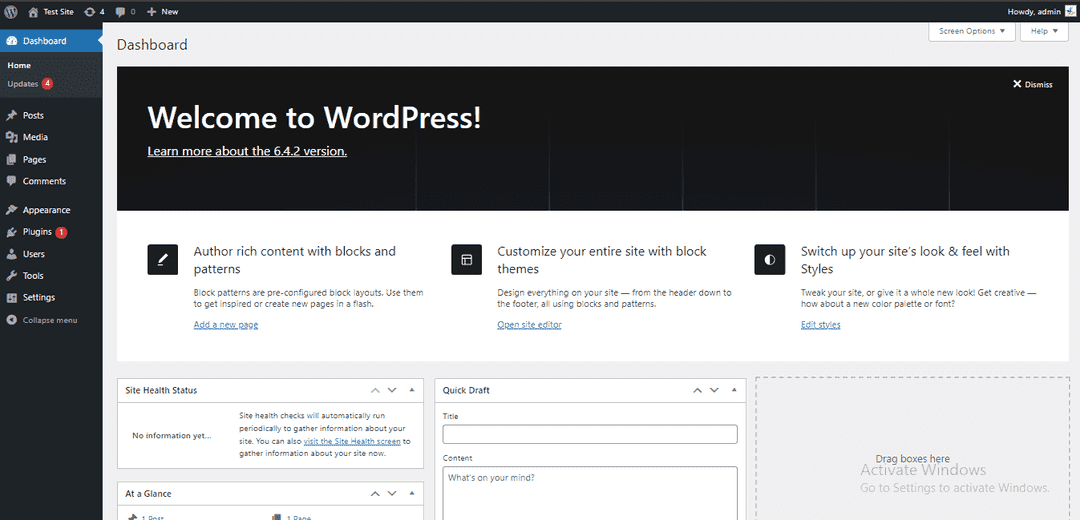
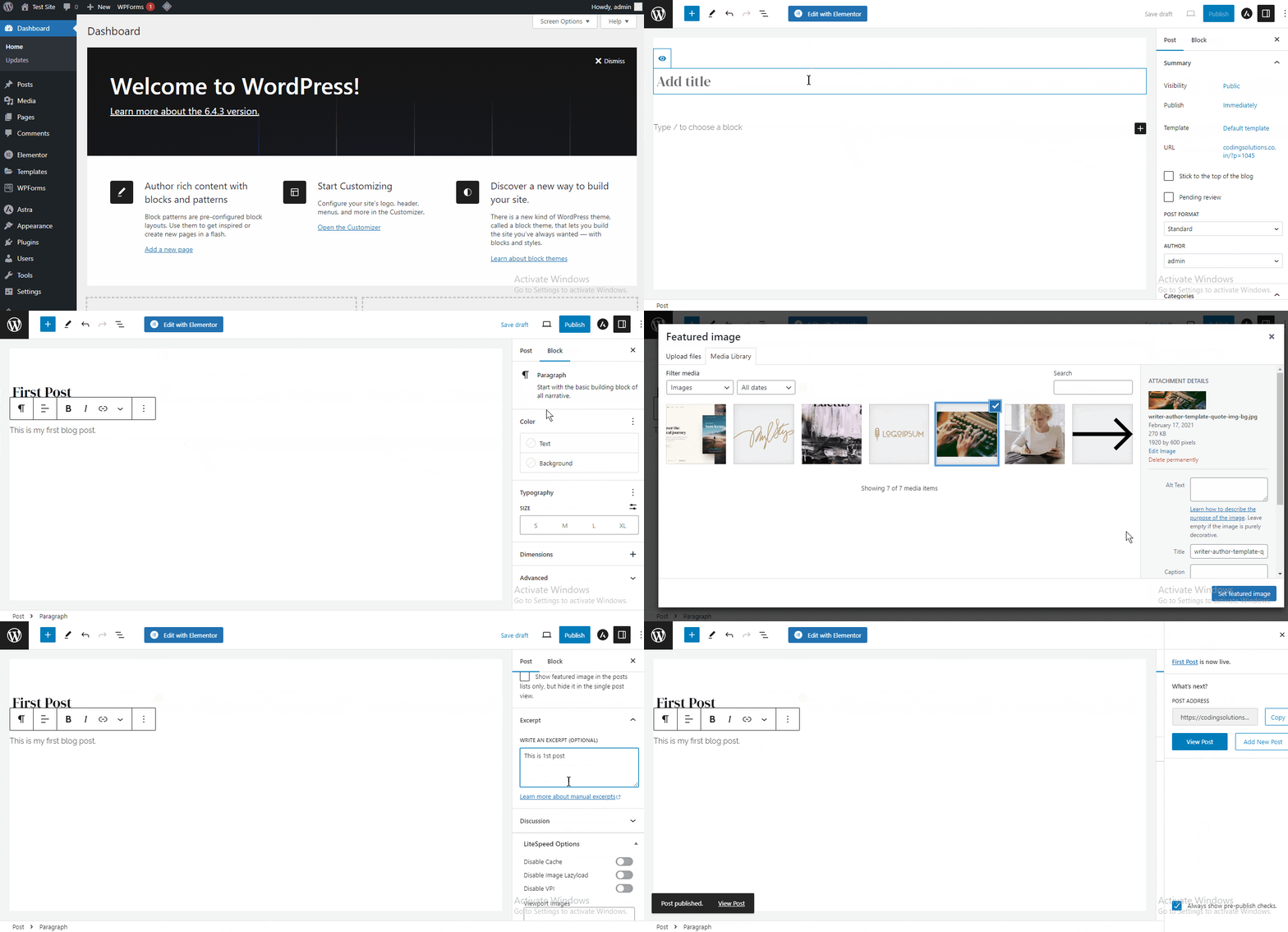
This is your website’s “Dashboard”/”Admin panel” which is the most important page of your website because, from this page, you can manage the website’s pages, posts, style, payments, etc. At this time, A basic site should be installed into your Domain. It’s time to build the website.

Your website’s backend/admin panel consists of many features that you’ll discover with time and effort. But here I give you a necessary idea to start your website development journey. 

Also, visit your website frontend to check what it looks like. 
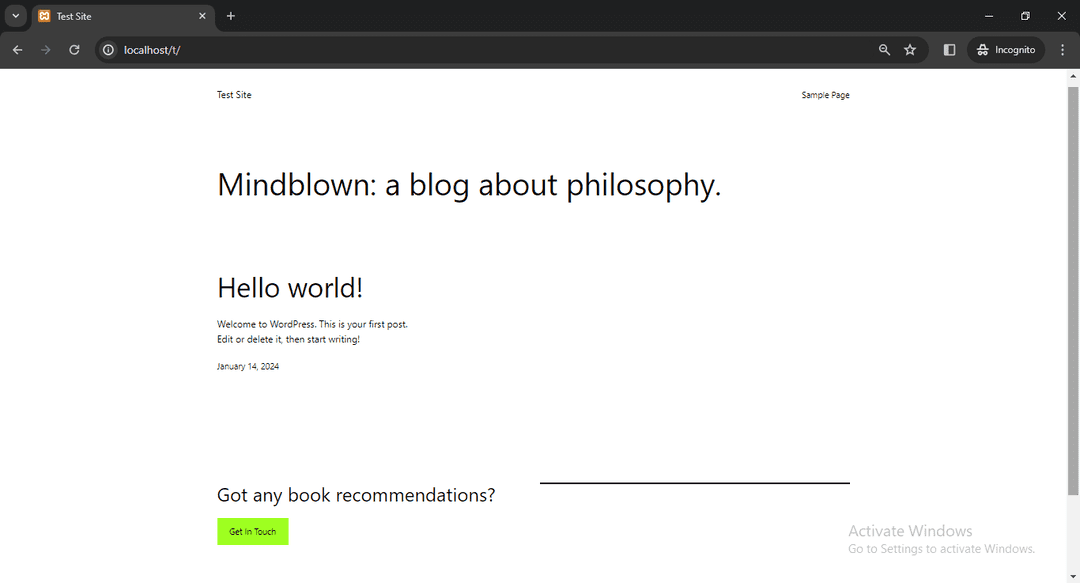
Now, the website is basic and looks boring but don’t worry, WordPress is a very handy platform and we’ll change the look and feel just by installing a theme.

Appearance

This tab is responsible for our site's overall design and look. We can install themes from here and also use prebuilt templates.

Install Theme for your website

You can find a lot of free and paid themes.

Installing a theme is a very easy process on WordPress websites, just go to Appearance->Themes and then click on Add New Theme finally Activate it. You also find a lot of paid themes there but I suggest starting with a free theme as it is your first website.
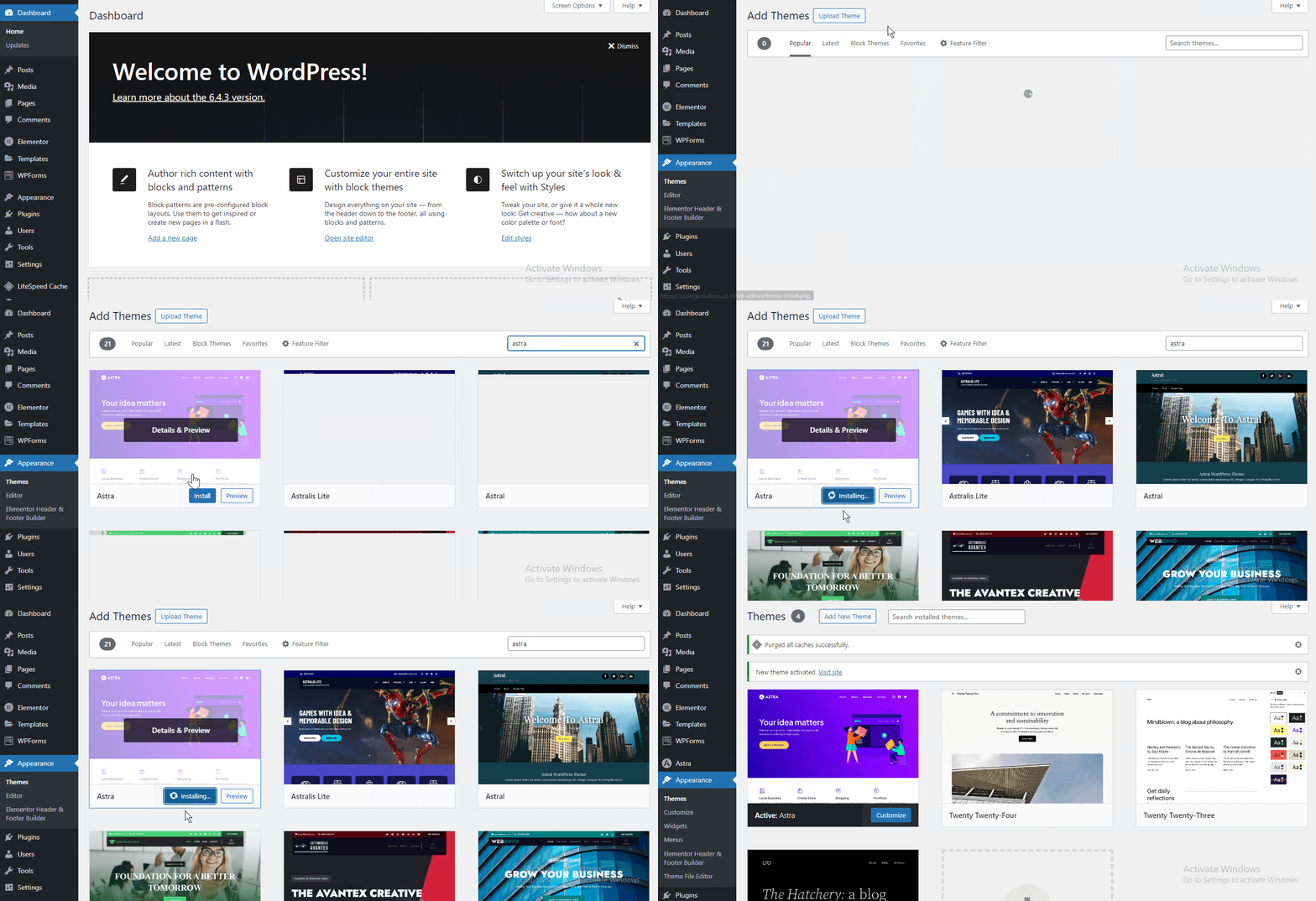
Note: The theme is also responsible for making your website faster or slower. I suggest you install lightweight themes like, “Astra”, “Ocean WP”, “Generate Press” etc.

Likewise, I briefly tell you the features that come with WordPress by default.

Posts

"Posts" are articles or content entries on a website that includes 'titles', 'bodies', 'featured images', 'categories', 'tags' and more. You can publish a new blog post from the tab.
Media

The "Media" tab refers to files such as images or videos. It organizes and manages multimedia content, making it accessible for seamless integration into posts or pages, enhancing a website's overall visual appeal and user experience.

Pages

From the tab, we can create our website's "Pages" such as "About us", "Contact us" page, etc. Pages are often used for static information, providing a clear site structure and navigation for users. They are separate from posts.

Plugins

A "Plugin" in WordPress websites is used to add specific functionality to your website, through which you can do some specific tasks in your website. There are 100s of free and premium plugins available for you to enhance features for your WordPress websites.

These are the basics of creating a WordPress website. I will guarantee you that by spending a little time you will be able to make a good and functional website. But to build better websites, you must have better knowledge of WordPress. Read my articles to find your specific query.
change_or_update_DNS

HOW TO CHANGE OR UPDATE YOUR DOMAIN NAME SERVERS

When you are reading this article I assume you already purchased a domain (suppose from Godaddy) and want to host your website on a different web hosting server. Here in that article, I’ll explain how to connect simply change domain name server Godaddy.

In the video, you didn’t find what you were looking for? Continue reading the article.

In order "to change domain name server" follow the below mentioned steps.

Table of Contents

Step 1: Login to your godaddy's account

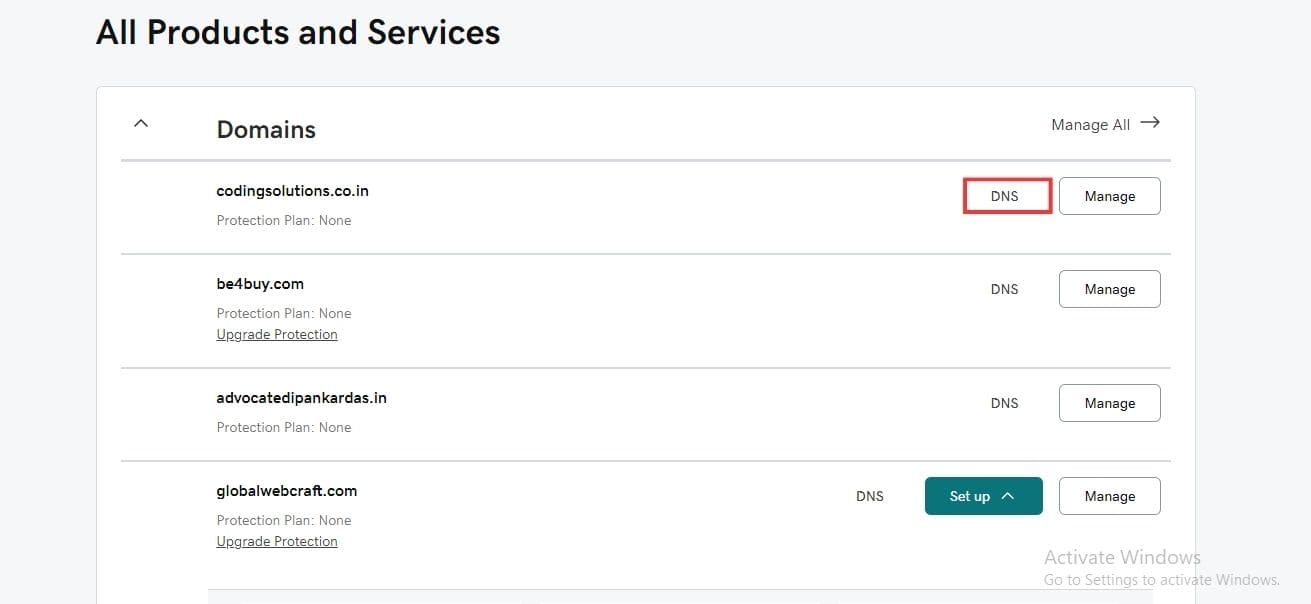
Step 2: Click on DNS button

Under the All Products section click the DNS button beside the particular domain to which you want to change the DNS records

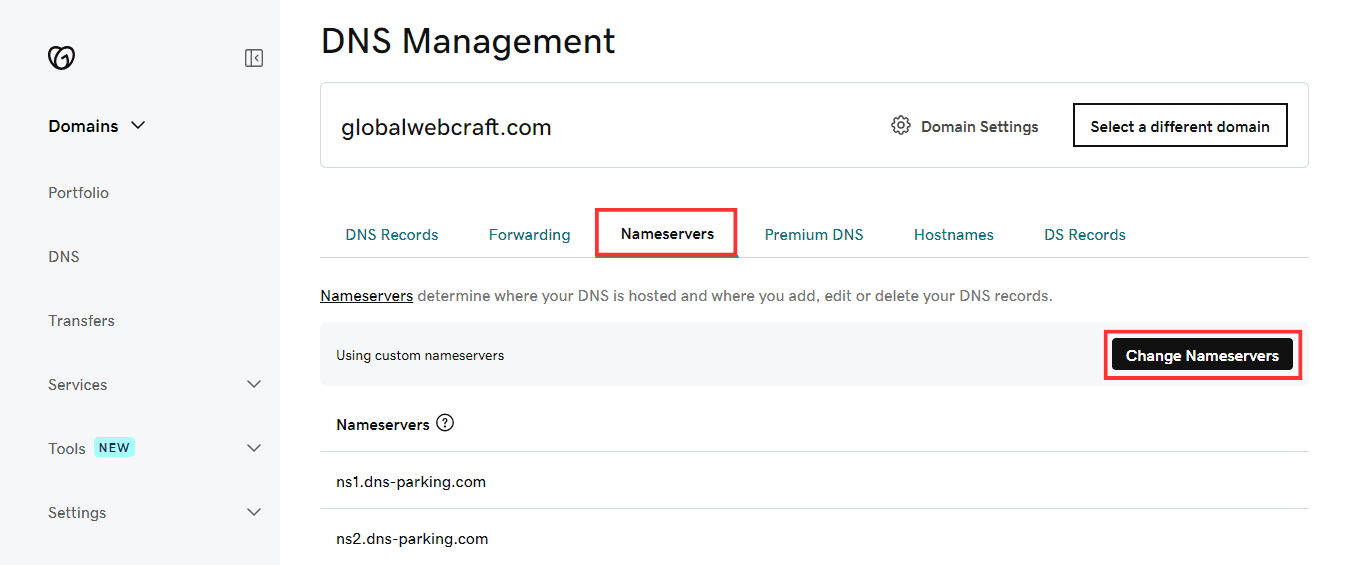
Step 3: Click on 'Change Nameservers' button

Select 'Nameservers' and then click on the 'Change Nameservers' button.

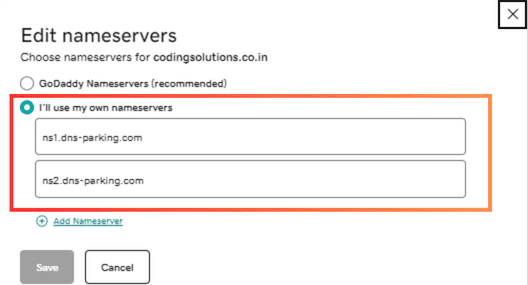
Step 4: Enter two line of code provided by your hosting

A popup will now be visible. By default, Godaddy nameservers are selected. Select I'll use my own nameservers

Click the Save button. This is how you can connect your domain name with your hosting servers.

In every hosting, you need to find the nameservers you will always have the option to add a domain name just follow that and in the end, you will get the nameservers. 

Here I’m showing you on Godaddy but other providers might have the way a little bit different but all of them have the option to add your custom nameservers.

NOTE: wait till it gets activated with new nameservers. They say it will take up to 24 hours after saving the new domain name servers, but in most cases, it takes just 10 to 30 minutes.

Read the article to learn how to create a website in 30 minutes or Read my articles to find your specific query.
contact_forms_wordpress

HOW TO CREATE A CONTACT FORM IN WORDPRESS

Contact Forms are a vital part of a website, visitors want to contact you directly and effortlessly through a form on the contact page of your website.

Here you learn how to add contact form in WordPress in 6 simple steps Creating a contact form is not so difficult in WordPress. At the end of this article, you will be able to make an eye-catching contact form and implement it on your website without a single line of code.

In the video, didn’t find what you were looking for?  I’ll tell you a different process for creating a contact form in the article. Continue reading the article.

Table of Contents

Why you should add a contact form in your website

There are mainly 3 reasons why you should add a contact form to a website.

  • Simplified way for visitors to contact.
  • Protection from unwanted emails. 
  • Improves the authenticity of a website.

Step1: Simplified way for visitors to contact

Having a contact form on your website makes visitors effortlessly contact you. You may think why should I add a contact form, instead of just adding an email address to the website, then how to send an email is on the visitor's part. However, it is the website owner's responsibility to make a simplified and efficient way for visitors to contact. In a contact form, you need to just enter your details and send the message. It saves a lot of time.

Step2: Protection from unwanted emails

There are several marketing companies out there that will send unwanted emails and fill your inbox memory. It's better to create a contact form on your website and use CAPTCHA to stop spam emails.

Step3: Improves the authenticity of a website

A contact form on a business or personal website increases its authenticity. Without a contact form on the contact page, your website looks incomplete.

Steps how to add contact form in wordpress in 6 simple steps

Step1: Installing of a contact form plugin

There are a lot of free and paid contact form plugins, but I use the Forminator plugin and recommend it. This is the best plugin I have used so far because of its flexibility and customization options.

Reasons, why I recommend you to use this plugin

  1. Ease of use: You can use the plugin with ease, you don't have to write any code to create and manage the form.
  2. Free: The "Forminator" plugin is 100% free to use for a lifetime.
  3. Pro-level features: In the plugin, you have some features that are only available in some premium contact form plugins.

Install and Activate "Forminator" plugin

Great! You have selected the best plugin for your contact forms. Now it's time to install and activate the plugin.

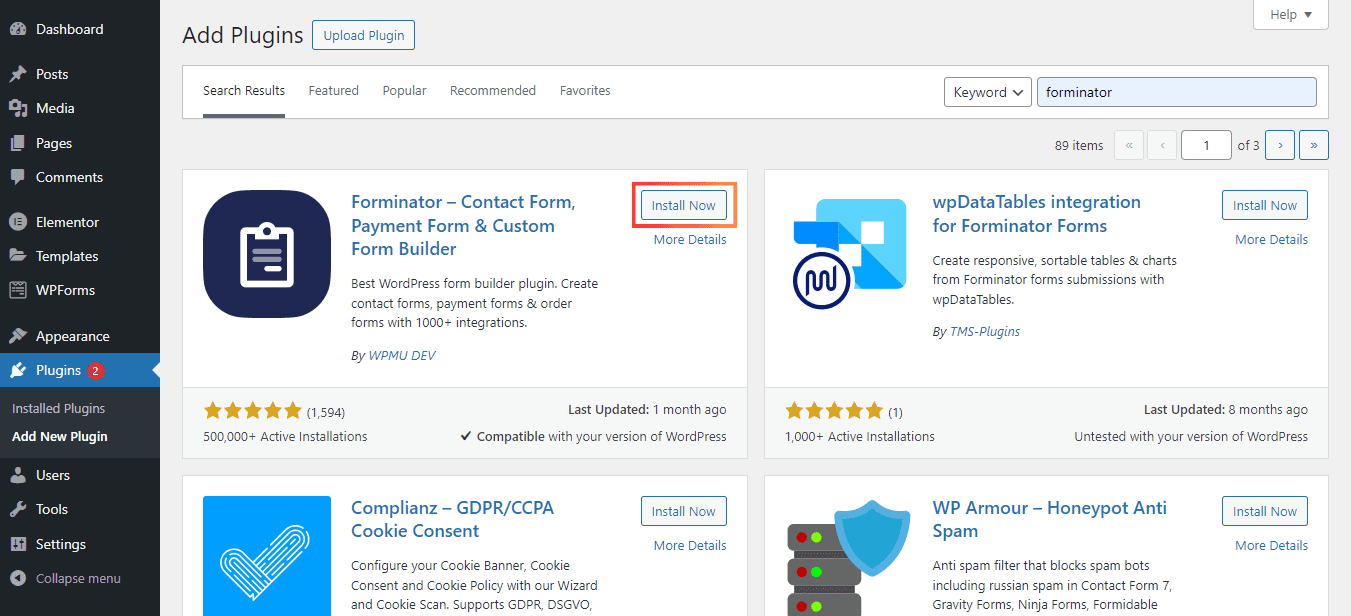
First, you have to log in to your WordPress admin panel, then go to Plugins -> Add New Plugin, and then in the search box type Forminator. The first plugin that appears on the screen is Forminator(by "WPMU DEV"), Click on the Install Now button. After installing the plugin successfully Activate it.

Step2: Creating a form

Now, it's time to create a contact form with the following fields:

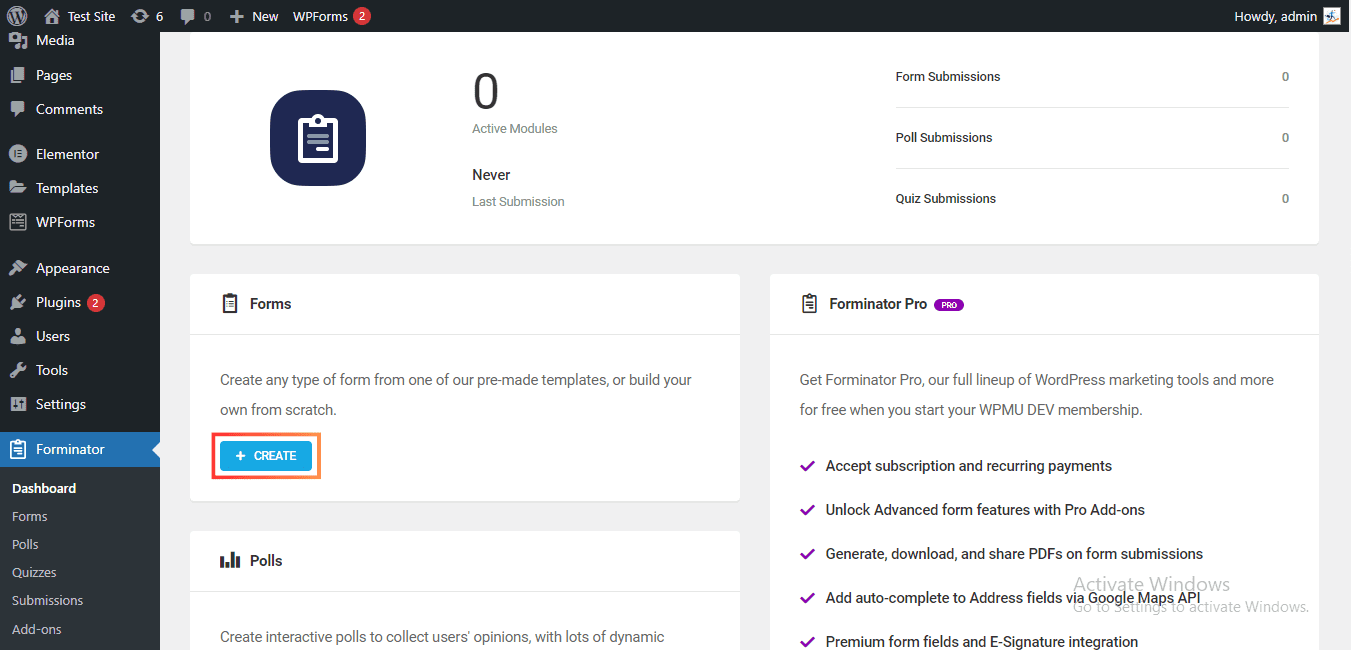
After activating the plugin you can see a new tab in the left sidebar, “Forminator. Create a new form by clicking the Forminator Dashboard -> CREATE button.

Now a popup will open, choose the Blank template because I want you to create a form from scratch, without selecting any premade template for better understanding, then click on CONTINUE and give it a unique name to your first contact form, then click on CREATE button.

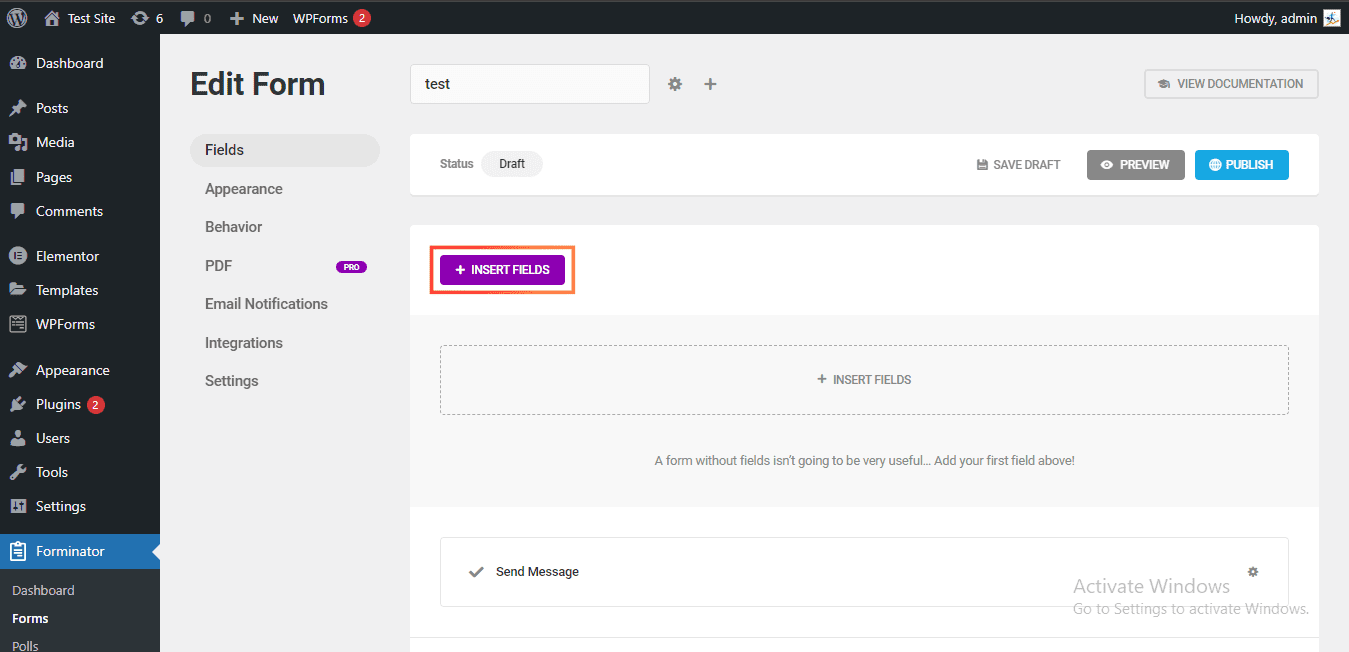
Now, you will see a form builder screen, click on the INSERT FIELDS button.

Now, again a popup will open from there select your desired fields (name, phone, email, textarea, etc.)

Note: In this free plugin you can access some fields that are only accessible in premium versions of other contact form plugins, this is one of the reasons why I suggest you use this plugin for the creation of your contact forms on websites.

After selecting the desired fields, click on the INSERT FIELDS button. 

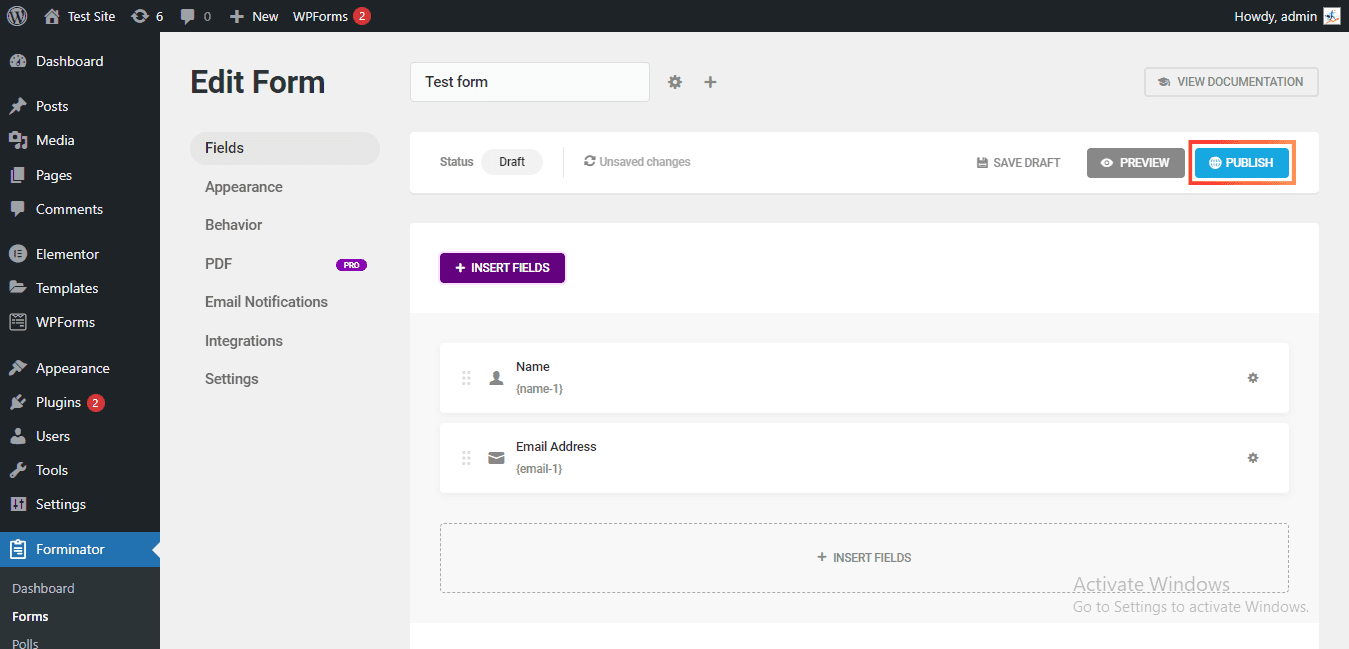
You should see the fields on the next screen. Now, Click on the PUBLISH button. 

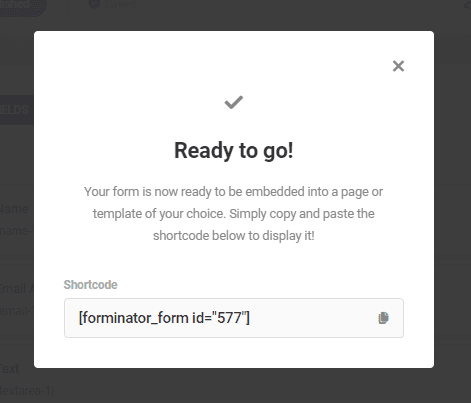
It will publish your form and will generate a code, on the next screen it shows a shortcode of your form. Copy that shortcode.

Step3: Edit the fields

The "Forminator" plugin gives you great flexibility to customize the fields, button text, and almost everything.

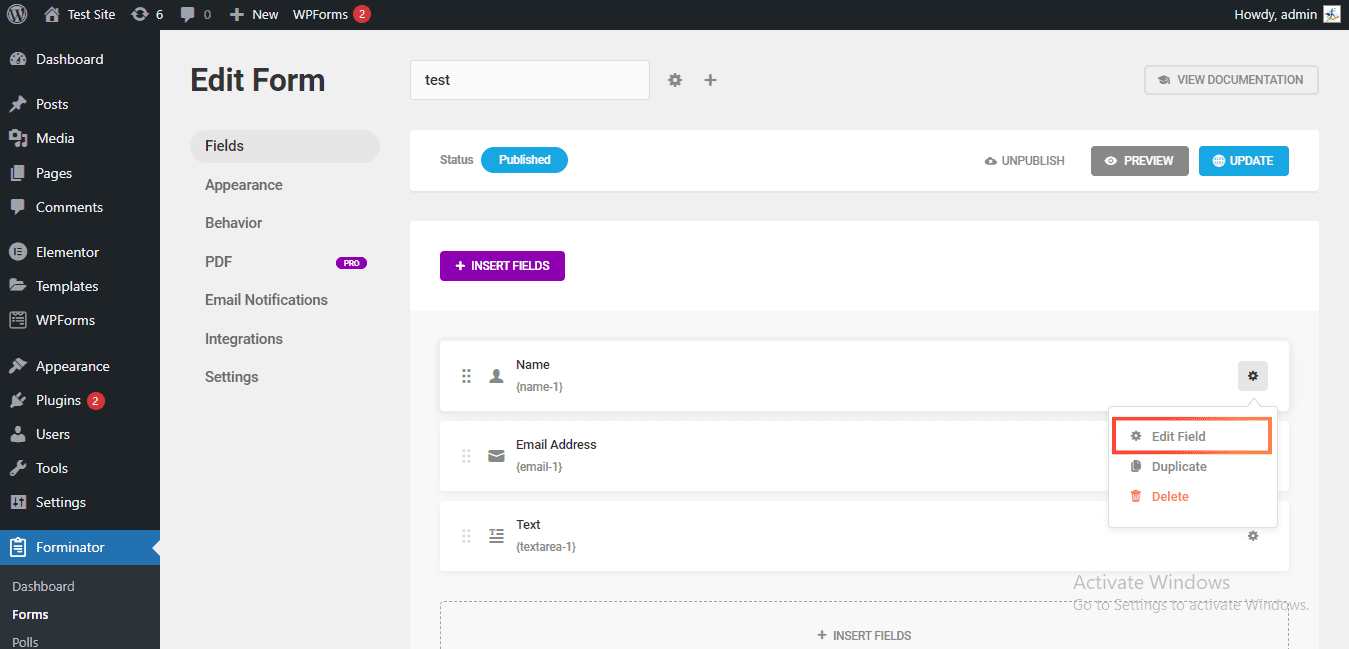
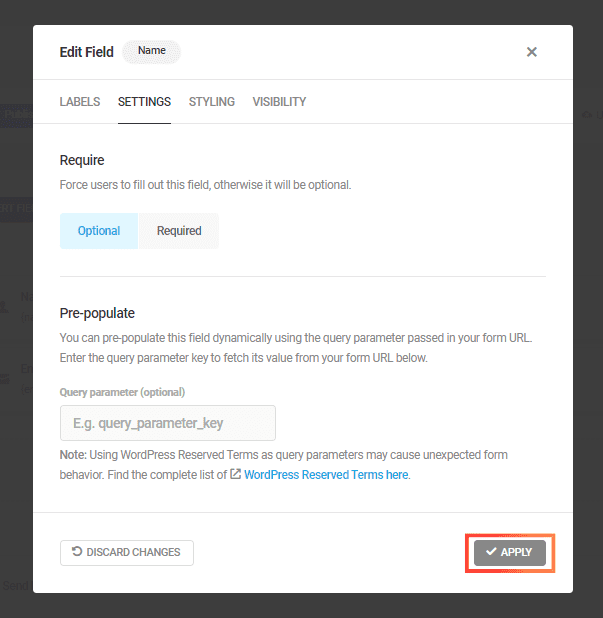
Customizing a specific field is very easy, just click on the gear icon -> Edit Field as shown in the image below. From there you can edit field Labels, Styling, Visibility, and Other Settings.

Then click on the Apply button after changes.

Finally, click on the Update button in the “Edit Form” dashboard to get the effect of all the changes to your contact form.

Step4: Add the form in your page

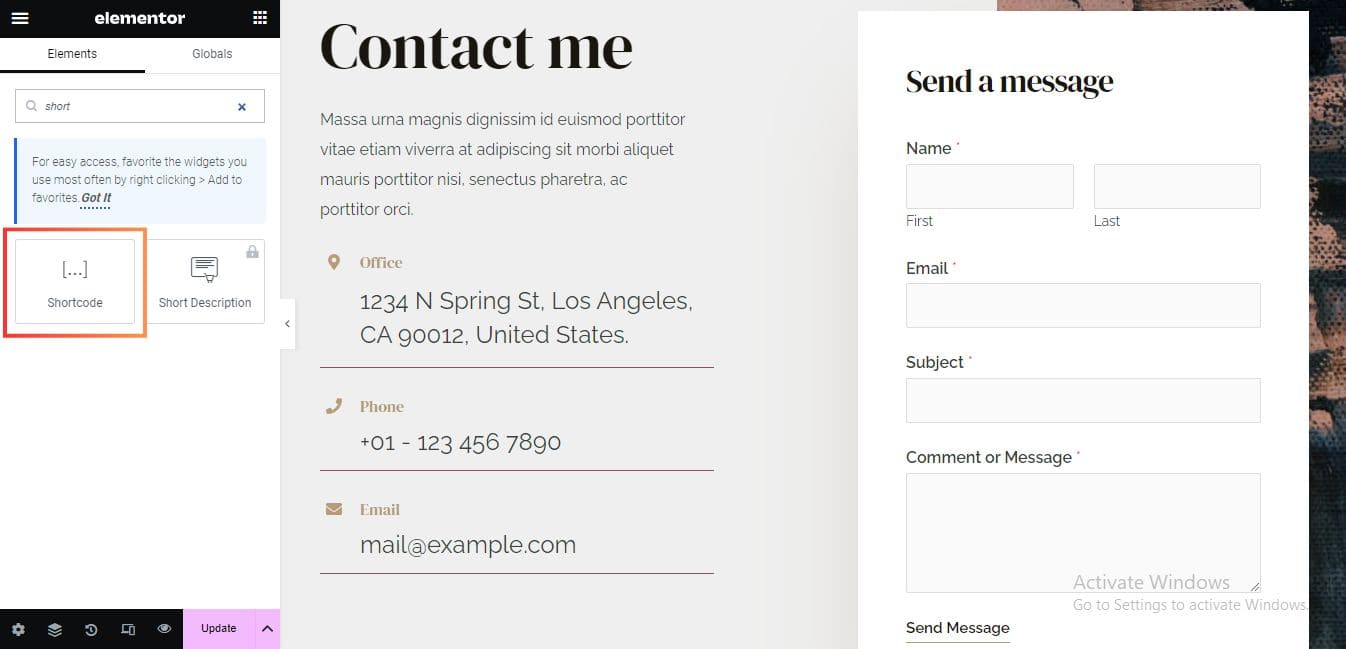
Open your contact page and click on Edit With Elementor. Now, from the left sidebar select Shortcode element and drag and drop the element at your desired location of the page.

Then paste that short code you have copied.

Now, you should see the newly created contact form with all the fields.

Step5: Customizing your form

You have not done yet, it's time to customize your form and the fields.

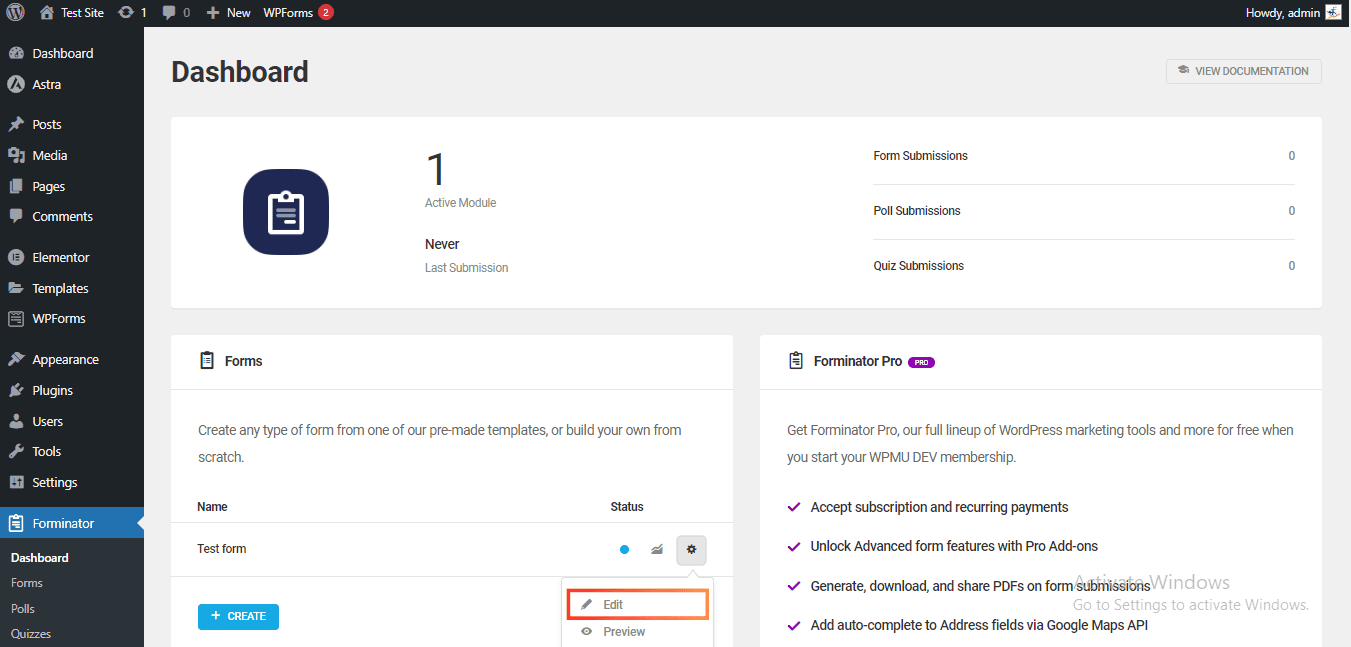
Now, to customize more in the form, again goto Forminator Dashboard,  then click on the gear icon -> Edit at the right hand side of the newly created form as shown in the image below.

Changing the Appearance of the Form:

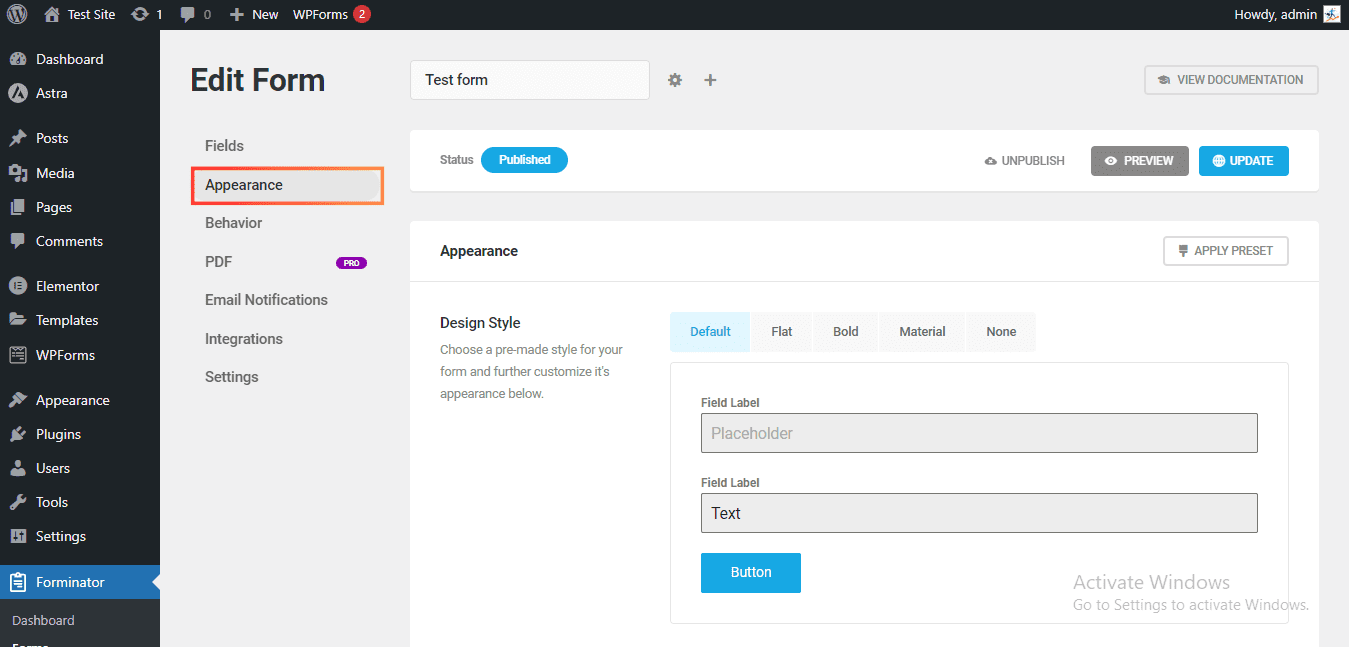
Now, for changing the look of the form goto the Appearance section as in the image below, to customize style, layout, colors, fonts etc.

Similarly, you can change the “Behavior”, “Email Notifications”, “Integration” and other “Settings”.

Step6: Configuring Email Notifications

Ok, so as far, we create a contact form for visitors, thus they could contact us through the form. But if we do not properly configure Email notifications of the form, visitors entry will not appear in our mail box.

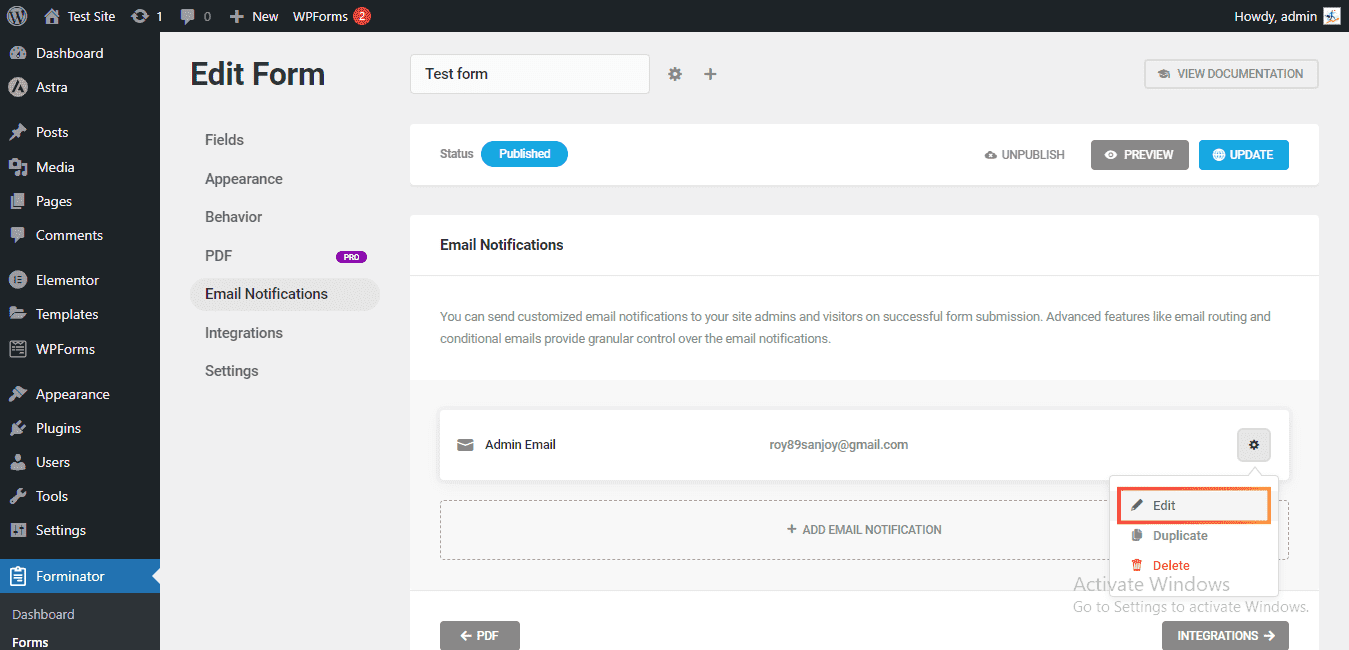
"Forminator" plugin give a separate section to configure email notifications of the form. Goto the "Email Notifications" section, there you can see a email already been added, just click on the Gear icon -> Edit as shown in the image below.

Now, goto “Recipients” tab and here enter the email address on which you want to received details of contact form submission.

That is easily how to add contact form in WordPress in 6 simple steps on our website. You can check your live website and see a working contact form is there.

Now, you have to configure your hosting’s SMTP service to send emails. Read the article to know how to configure SMTP. Read my articles to find your specific query.
SMTP_config

HOW TO SEND EMAILS IN WORDPRESS, CONFIGURING SMTP

In this article, we’ll use SMTP services via an SMTP plugin to send emails from our WordPress website instead of the default PHP mail service and properly understand how to setup SMTP in WordPress to send emails.

In the video, you didn’t find what you were looking for. Read the article below.

We will use Fluent SMTP for sending the emails from our WordPress website.

Note: In this article, we will use the free version of the plugin, that is you don’t have to buy anything to send an email.

Table of Contents

Steps on "how to setup SMTP in WordPress"

Step1: Install and Activate the Plugin

  1. Login to your website's admin panel.
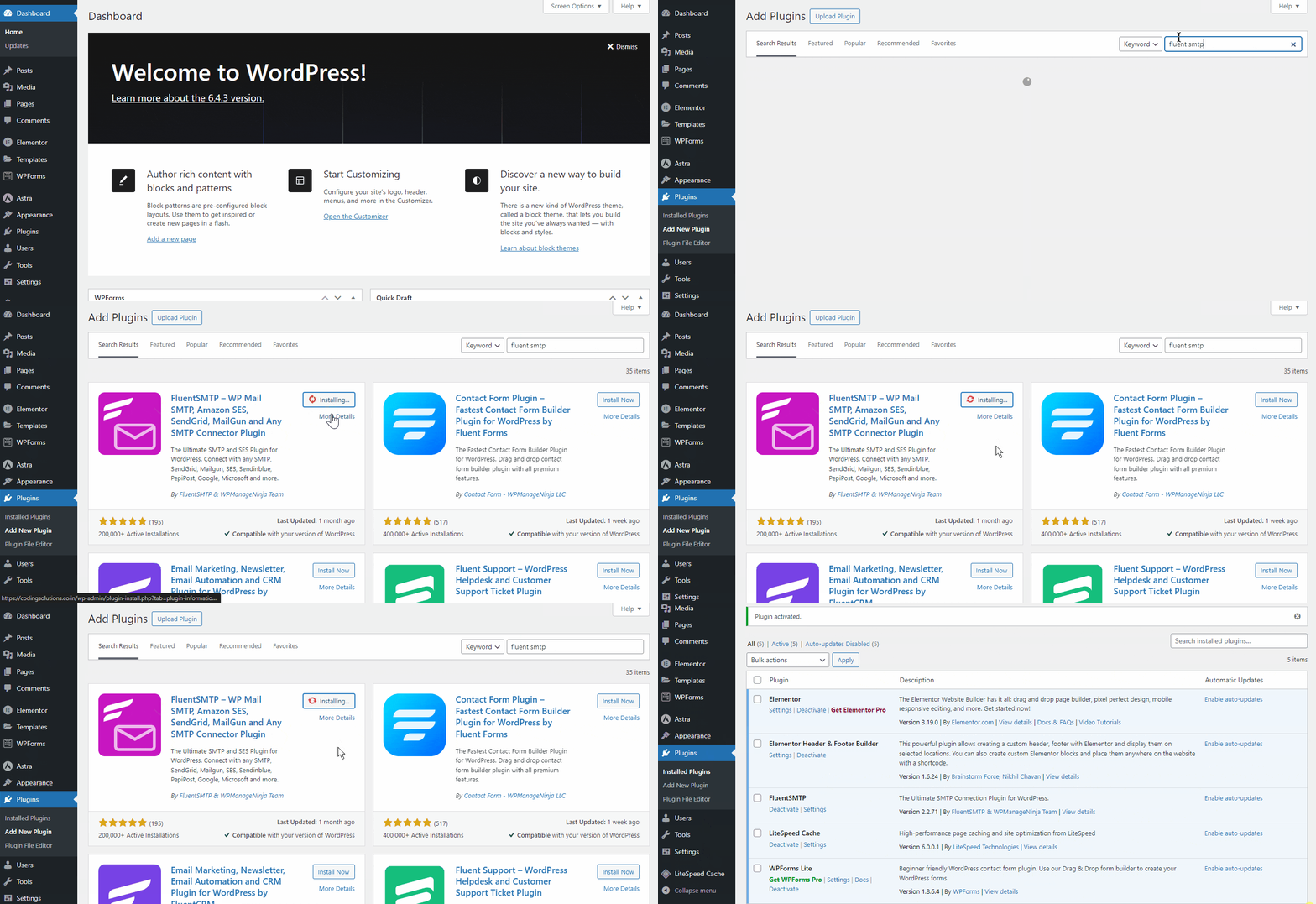
  2. Click on Plugins -> Add New Plugin
  3. In the search box, type "Fluent SMTP".
  4. In the First Plugin that will appear, click on the Install Now button. 
  5. Now, it will show you the Activate button. Click on it. 

Now, the plugin will be successfully installed and activated on your website. But not configured with your website. I’ll tell you the configuration process in the next step.

Step2: Configure the Plugin

At this stage, you have successfully installed and activated the plugin but the job is not done yet, we have to "configure" or "Set up" the plugin with our WordPress website.

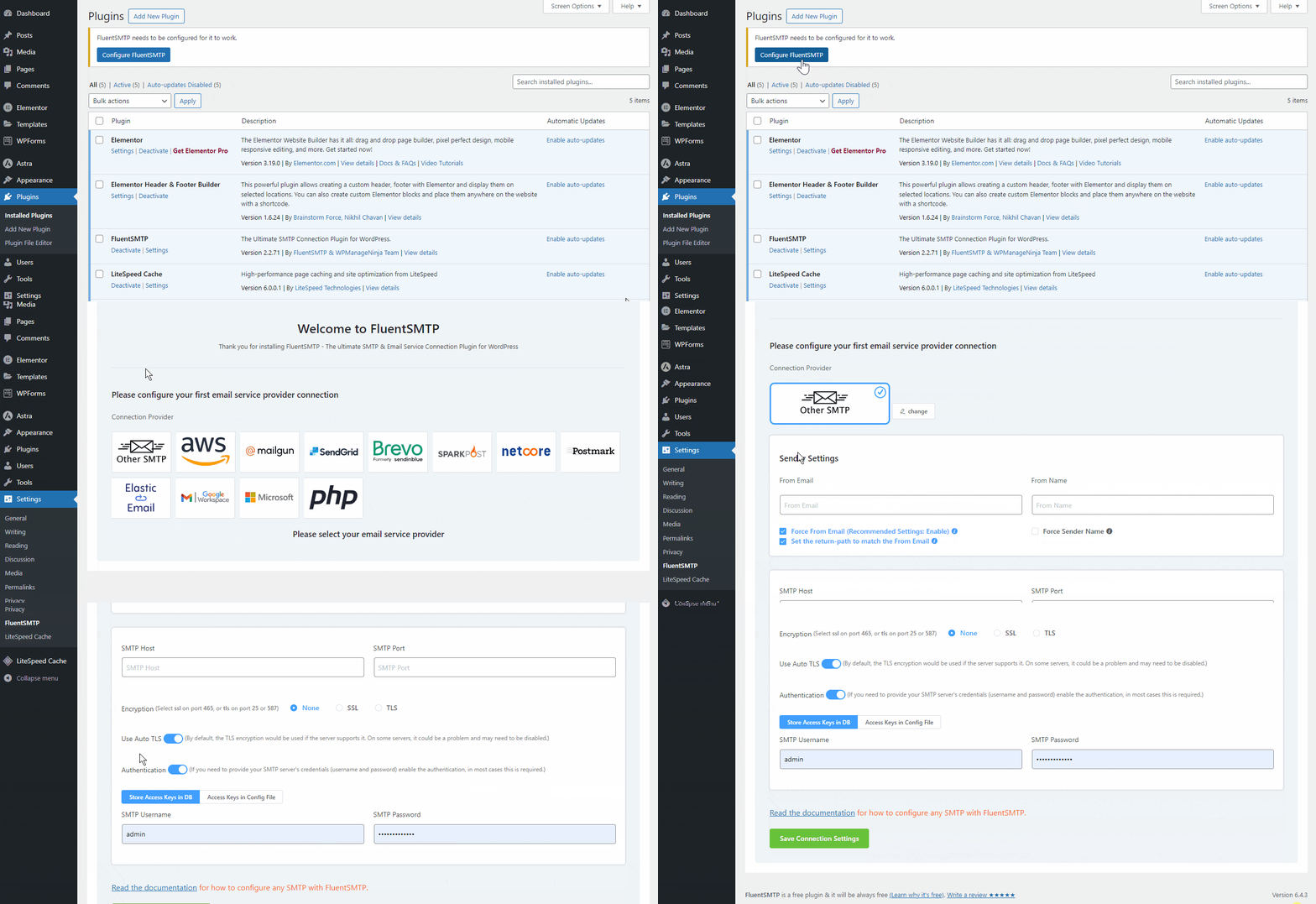
The first time you activate the plugin, it will show up a Configure FluentSMTP button at the top just click on it, or click on Settings -> FluentSMTP option and scroll down to "Other SMTP". Insert the following settings: 

  1. Select the option “Other SMTP”
  2. “From Email” -> Enter an email address from where you want to send all the emails.
  3. “From Name” -> What you enter in this field will be visible to your recipients. I recommend you enter your business name or a word associated with this website only. “Force Sender Name” is optional but I recommend you to tick this option.
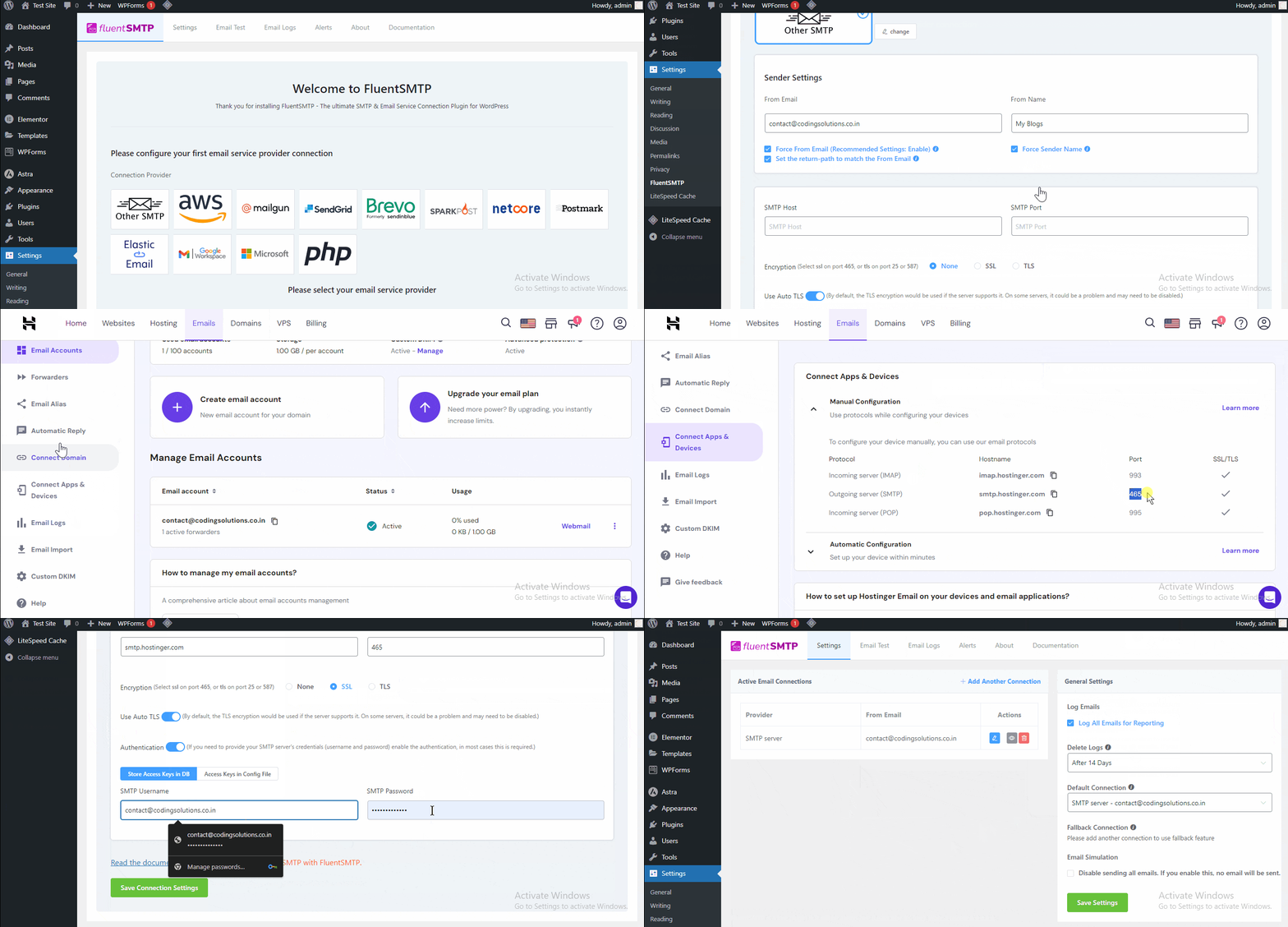
  4. “SMTP Host” -> In this input box you have to enter your hosting’s “Outgoing server SMTP”. In the case of “Hostinger” use “smtp.hostinger.com
  5. “SMTP Port” -> In this input box you have to enter your hosting’s “Outgoing server Port address”. In the case of “Hostinger” use “465
  6. “SMTP Username” -> In most cases this box is filled with the “email address already created on your domain”.
  7. “SMTP Password” -> In this input box you have to enter the “password” of that email address.

Note: Third-party email addresses will not work. You must enter an email address that is already created on your domain.

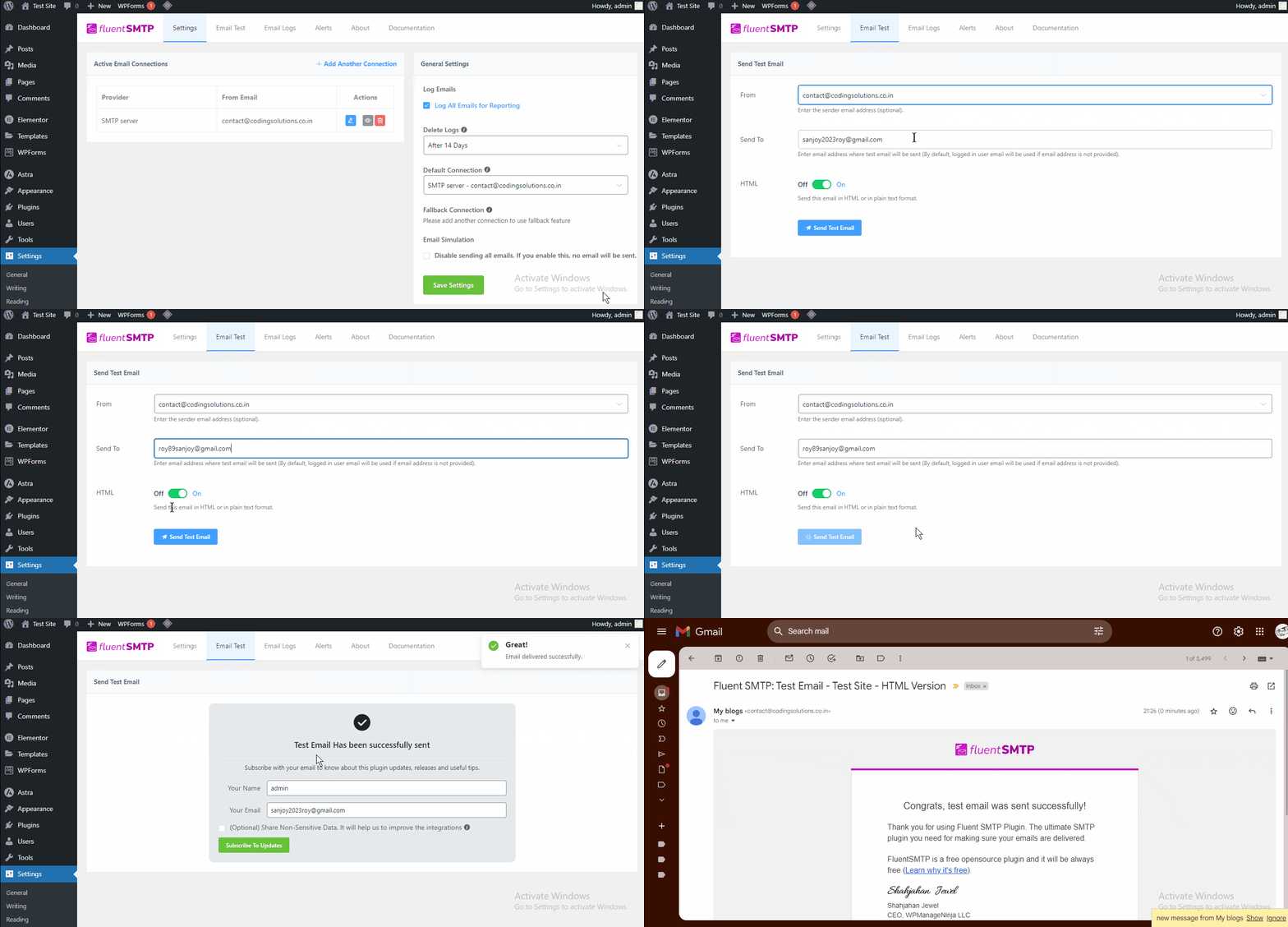
Now, the configuration process of SMTP on the WordPress website is completed. From now on all the emails will be sent to your mailbox. You can also watch the status of your emails from the “Email Logs” tab, in the “FluentSMTP” dashboard.

Note: But to watch the emails, every time you have to enter into your Hostinger account. It will be easier for us if all the emails go into your Gmail account. To get emails directly from your website to the “Gmail” account, simply create an email forward on that particular email from your “Hostinger” account. Do not worry I’ll tell you the process.

Step3: Create a Email Forward

Good job, the emails are now going correctly to your Hostinger's mailbox. But you need all the emails will go to the Gmail inboxes. 

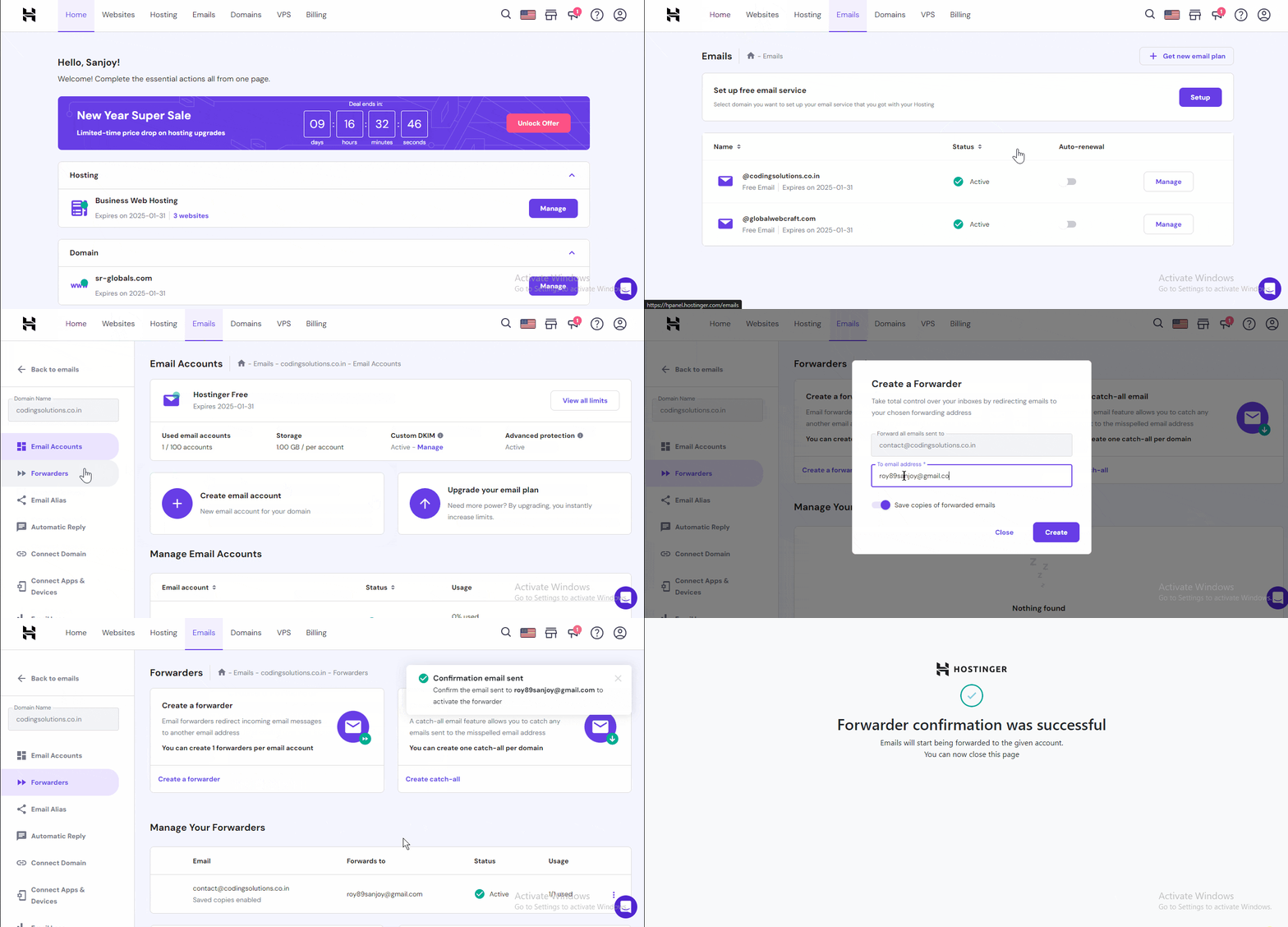
Now, create an email forward, as you have already logged in to your Hostinger account. Go to Emails -> Forwarders, now click on Create a forwarder here put your desired email address on the To email address input box, and then click on the Create button. Now, the email forwarder was created.

Then, a confirmation email was sent to that email address, simply confirm that to activate. Now, all the emails sent from your website will be seen directly from your Gmail account.

Step4: Sending a Test Email

It's time to send a test email from your website, and observe was the mail successfully went to your Gmail account or not.

Great! From now on all the emails will be accessible from the administrator’s desired “Gmail” account. For other queries on Fluent SMTP visit official docs. Read my articles and find your specific query. For creating contact forms on your website read How to Create a Contact Forms.
install_wordpress_on_localhost

HOW TO INSTALL WORDPRESS ON LOCALHOST

Using localhost in your WordPress site enables you to run updates, test plugins, or build your site in private. Here I will teach you how to install WordPress on localhost This means changes in the site won’t be visible to your users. 

The conventional method to use the WordPress CMS is to buy a domain and hosting plan and then install it. By following this step-by-step guide, you should be able to download the localhost software, create a database, and install WordPress.

Here you will learn how to configure a website in Localhost and the benefits of configuring a website in Localhost.

In the video, didn’t find what you were looking for?  I’ll tell you about a different and detailed process of creating a website on a local computer in the article. Continue reading the article.

Table of Contents

What is Localhost?

Instead of using hosting, the local PC can work as the storage device of your website. You need to install third-party software to use your computer's storage as a hosting, which creates a virtual environment for installing WordPress.

Why do you need to install WordPress on Localhost?

But, why do we use localhost for our website development as no one can see our site, you can also think localhost is only for beginners who want to start practicing creating websites for free. But the fact is advanced users also use localhost with WordPress to test plugins, themes, and more, before applying it to their live websites to avoid any mistakes.

Options to Install WordPress Locally

There are mainly four most popular localhost softwares to install WordPress locally.

  1. XAMPP - Cross-platform, Apache, MySQL, PHP, and Perl
  2. WAMP - Windows, Apache, MySQL, PHP
  3. MAMP - My Apache, MySQL, PHP
  4. LAMP - Linux, Apache, MySQL, and PHP  

Among all of them, I do recommend XAMPP for installing and managing our websites on Localhost, because of its ease of use and it also offers more features than others. 

Here, I use XAMPP for its ease of use and beginner-friendliness.

Steps on How to install WordPress on localhost

Installing WordPress on a local computer is easier than you think. In this post, I will guide you on how to install WordPress on localhost in simple steps.

  1. Download XAMPP
  2. Install and Run XAMPP
  3. Download WordPress
  4. Create a Database for your website’s files
  5. Install and Run WordPress on Localhost

Step1: Download XAMPP

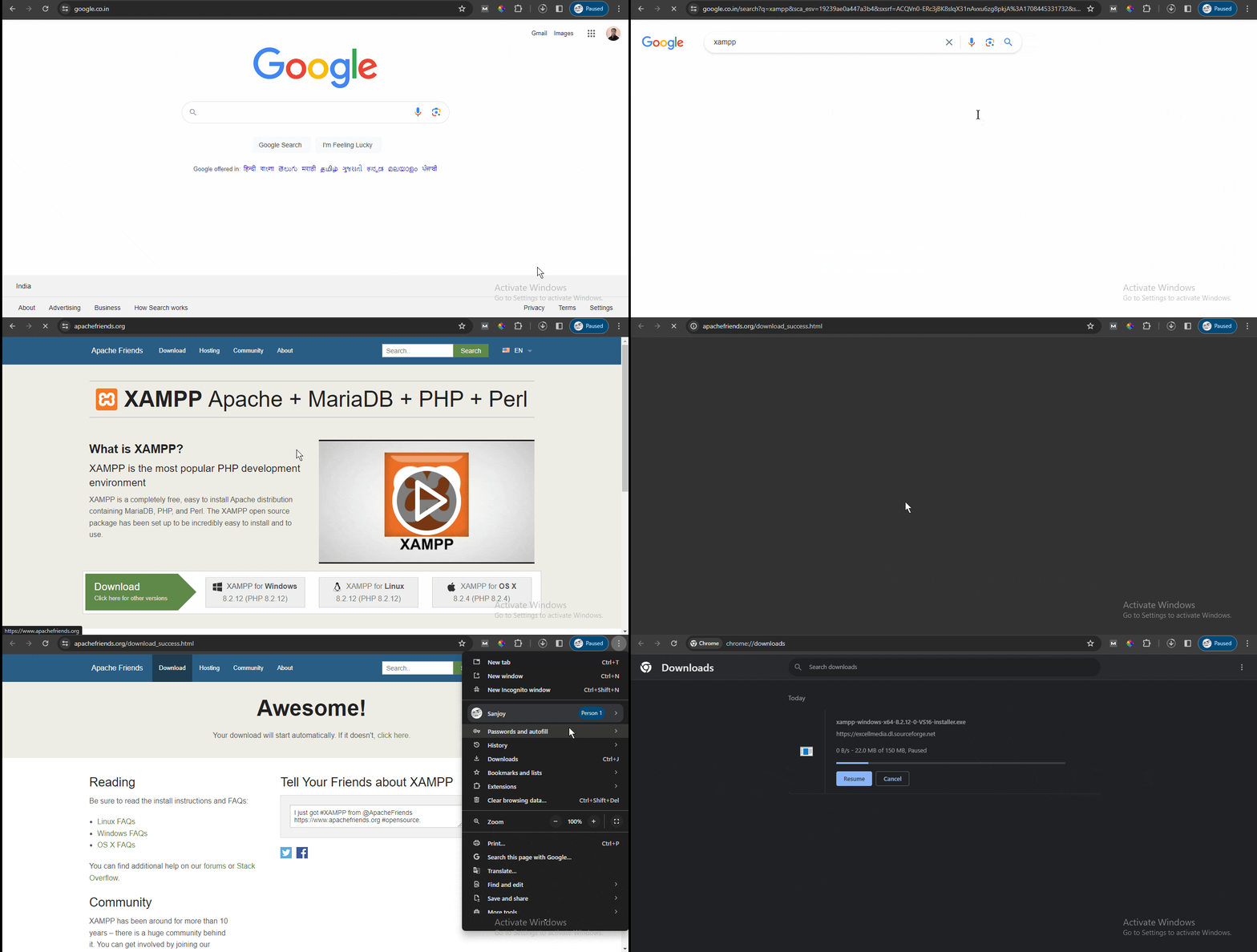
The first step is to download XAMPP software from Apache friends. Visit here to download XAMPP for Windows, Linux, or OS X.

Now, click on the appropriate button as per your operating system. Wait for a while, the file size will be around 150MB.

Step2: Install and Run XAMPP

Great, you have successfully downloaded the software. Now, it's time to install and run XAMPP on your computer. 

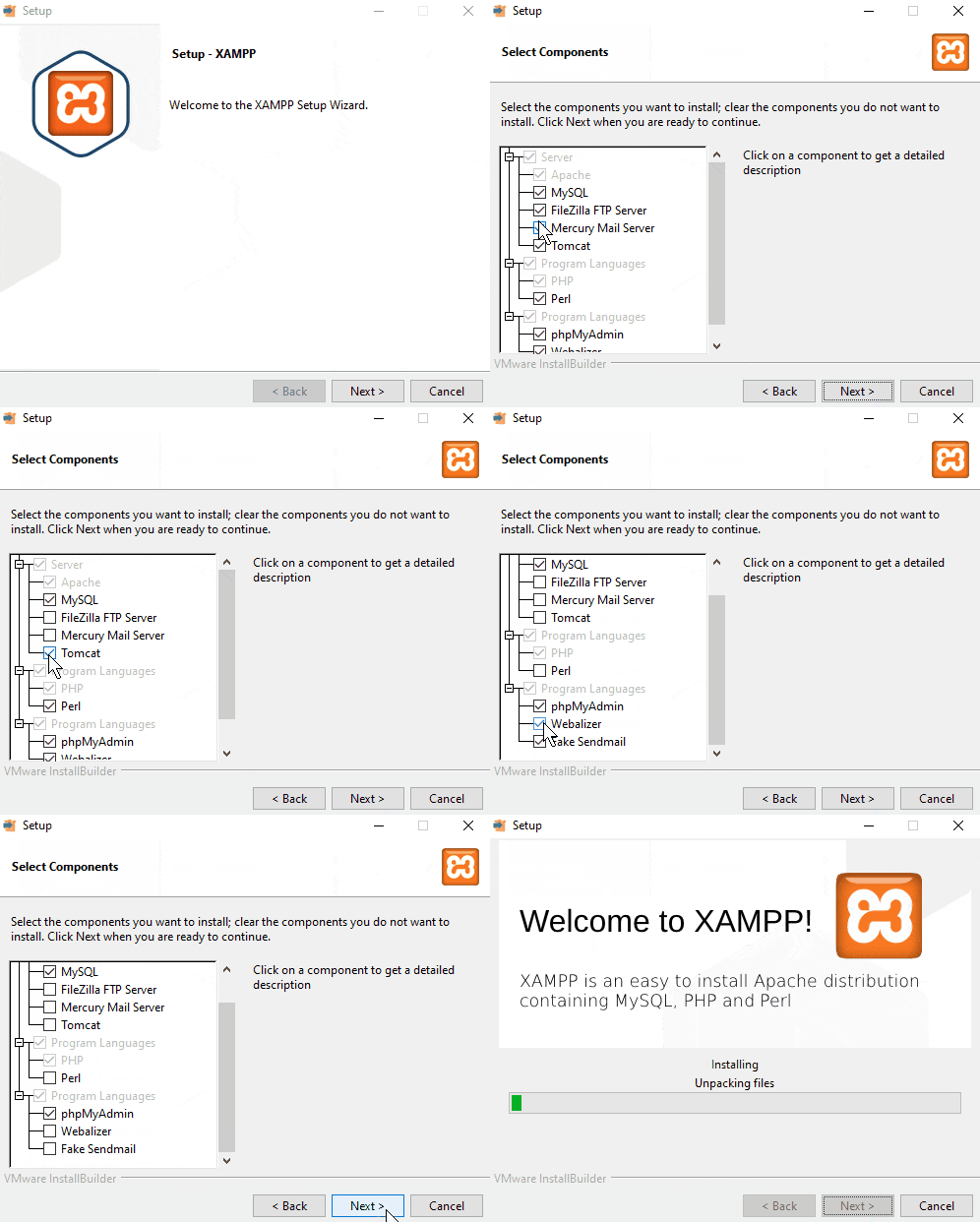
After finishing the download, select the installer/.exe file, or click on it twice, and soon the installation process will begin if any warning message pops up click on OK, and it will enter into the installation process.

  1. Click on the next button.
  2. Next, some checkboxes will be checked You just need MySQL and phpMyAdmin, so unmark the other boxes.
  3. Next, choose a folder location where to install the software. I suggest leave it as it is. and click on the next button.
  4. Now, the default language will be selected as English. You can change the language from here and click on the next button.
  5. Then again click on the next button.
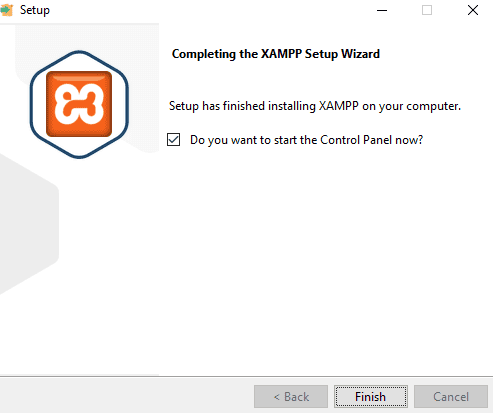
  1. To finish the installation process. Click on the Finish button.

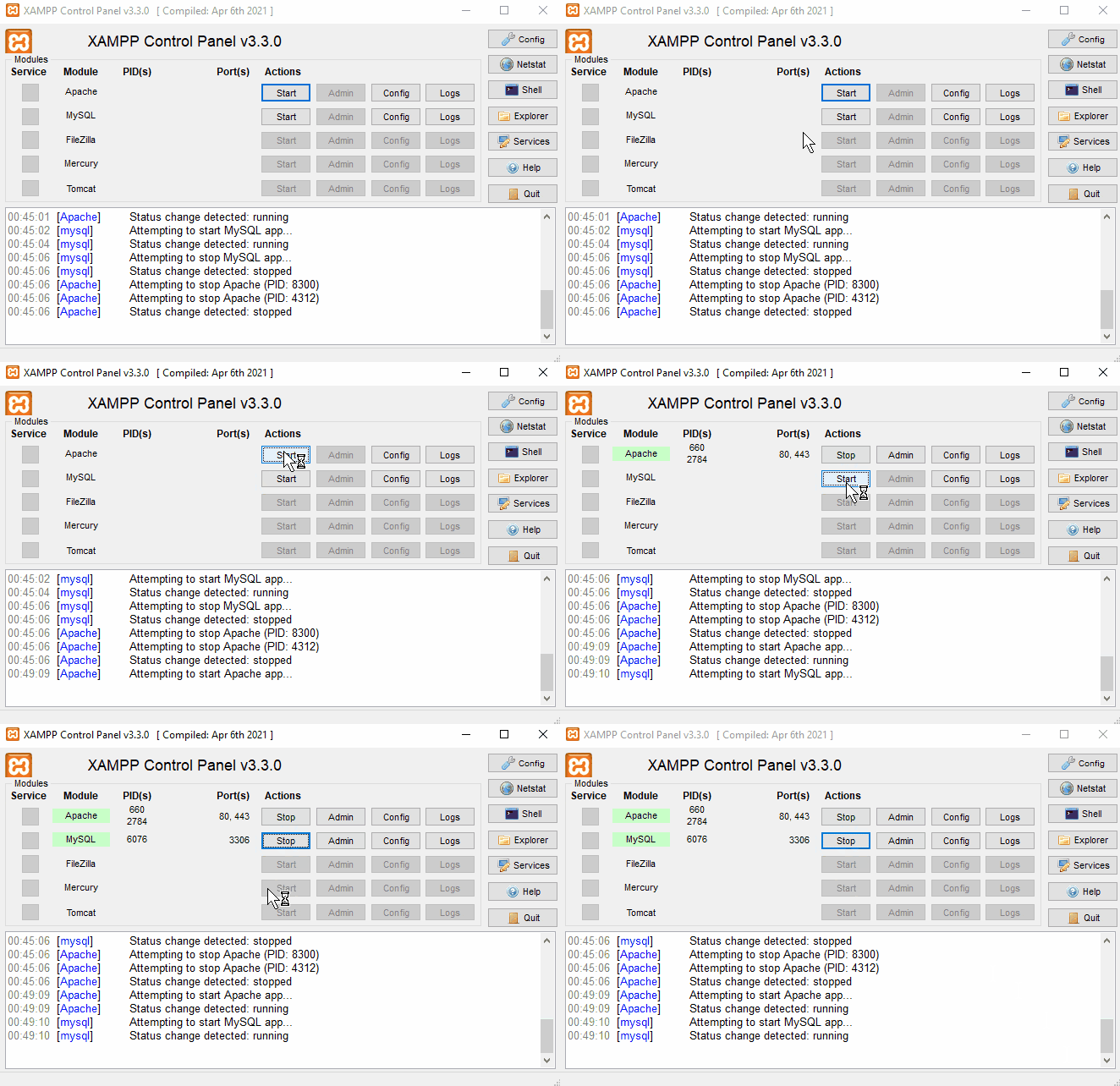
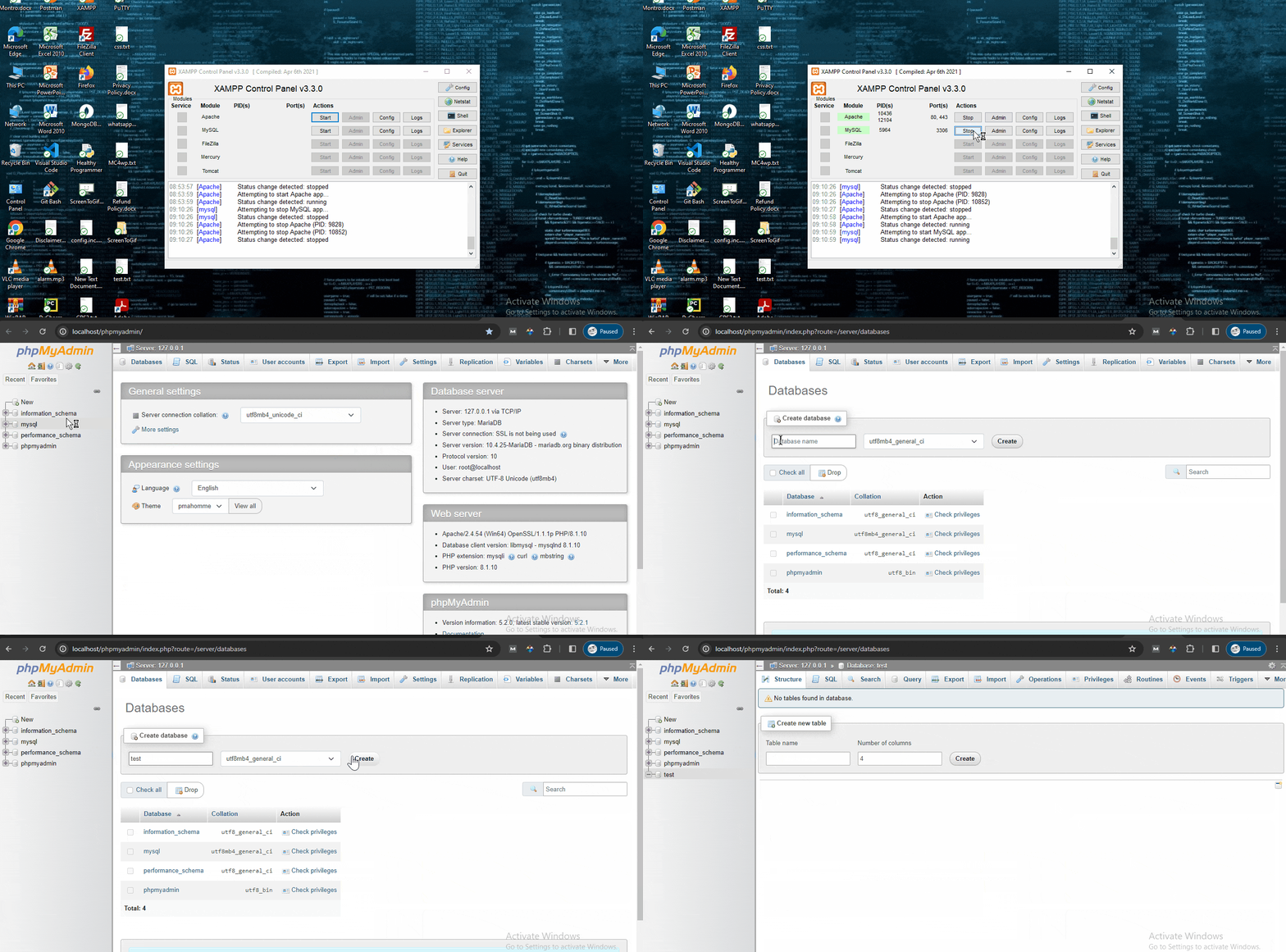
After finishing the setup the XAMPP control panel will open. To run WordPress we need to run Apache and MySQL modules. Click on the start button for both of the modules. Ensure these modules should turn green once you enable them.

Step3: Download WordPress

In the case of a live website, you can directly install WordPress on your domain from your hosting provider.

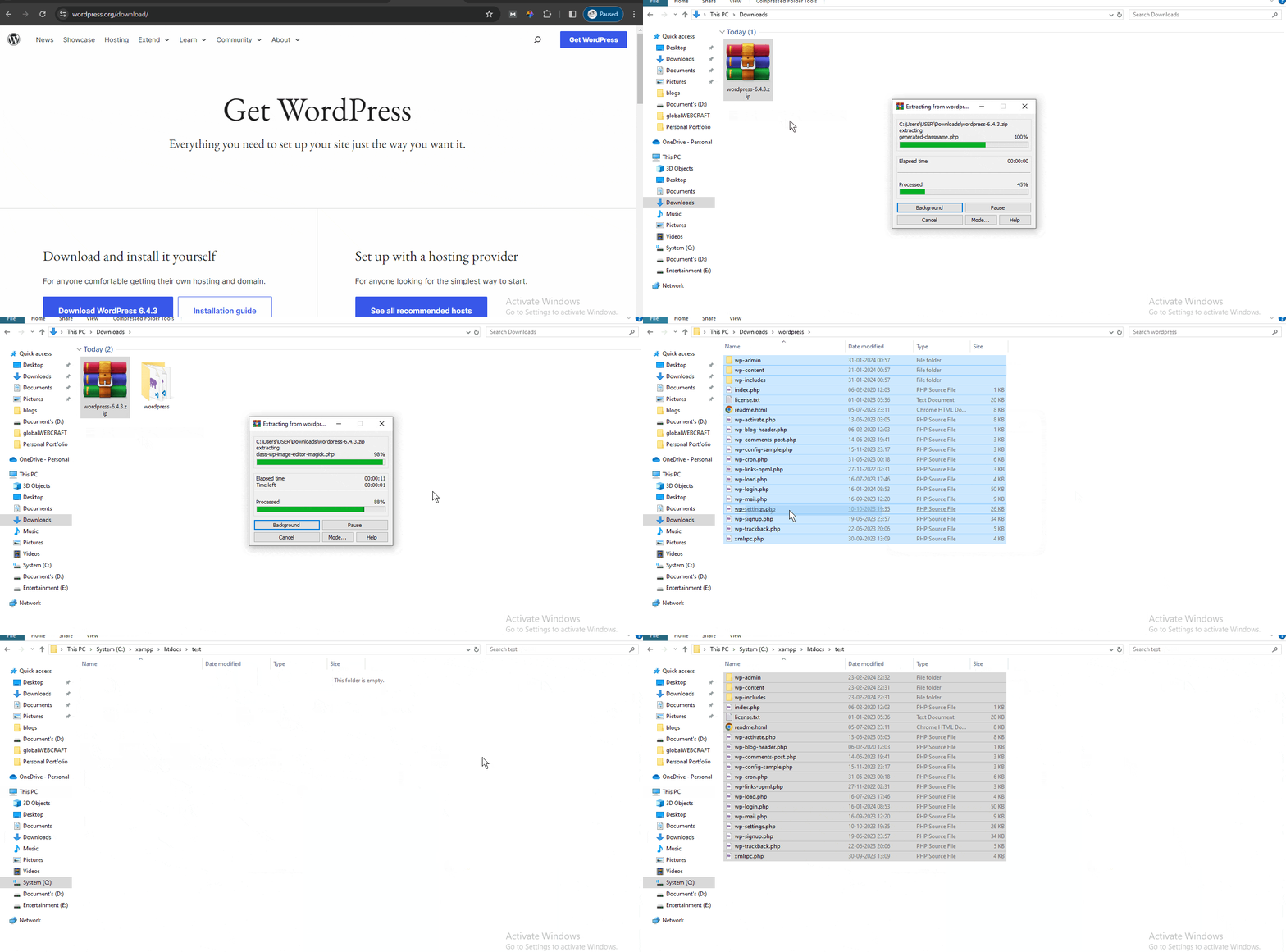
But for localhost, you need to download WordPress on your PC from WordPress's official website and unzip the downloaded zip file. 

Add the WordPress files

  1. Create a new folder on C drive -> xampp -> htdocs. 

Note: The name of the folder will be the sub-name used to access your website.

  1. Now, copy and paste all the unzipped files and folders into your targeted folder under the htdocs folder.

Note: In the browser's address bar, you must enter the name of that folder created within the "htdocs" folder to access your website on localhost.

Step4: Create a Database for your website's files

At this point, you have downloaded and installed WordPress on localhost successfully. Now, it's time to create a database for your WordPress website.

  1. Firstly, run the XAMPP control panel.
  2. click on the Start Apache and MySQL button.
  3. Click on the admin button next to the Mysql button.

Now, a new window will open on the browser.

  1. Click on the New button from the database tab.
  2. Enter the database name and click on the Create button.

Note: I suggest giving the database name related to your website for later operating purposes.

Step5: Install and Run WordPress on Localhost

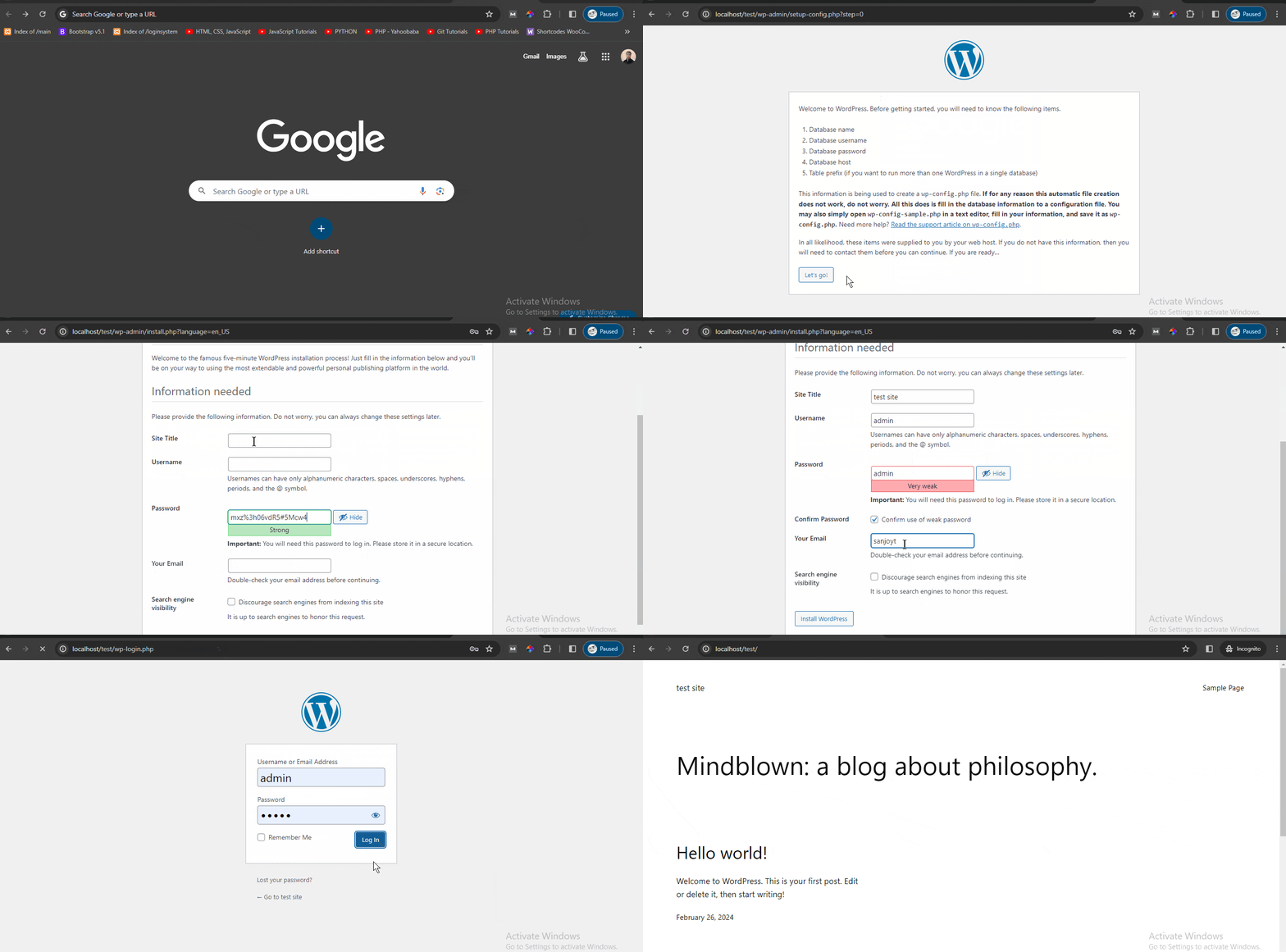
Alright, now visit your website through your browser by typing http://localhost/foldername

  1. Firstly, select the language. By default "English" language will be selected. Click on the Continue button.
  2. Click on Let's Go! button.
  3. Now, on the next screen Enter the Database Name, Username - "root", Password - keep it blank, Database Host and Table Prefix - leave these fields as it is then click on the Submit button.
  4. Click on the Run the installation button.
  5. Now, in the welcome screen enter your Site Title, Username - I recommend "admin", Password - I recommend "admin", Your Email - Enter your email id here. Search engine visibility - I recommend not to tick this option and then click on the Install WordPress button.
  6. Now, a success screen will appear. Here click on the Log In button.

Great, you have now successfully installed WordPress on your local computer. 

To, run the website just type on the browser http://localhost/foldername after opening the XAMPP control panel and then start Apache and MySQL modules.

For building websites without coding read my article on how to create WordPress websites.

subdomain_and_subdirectory

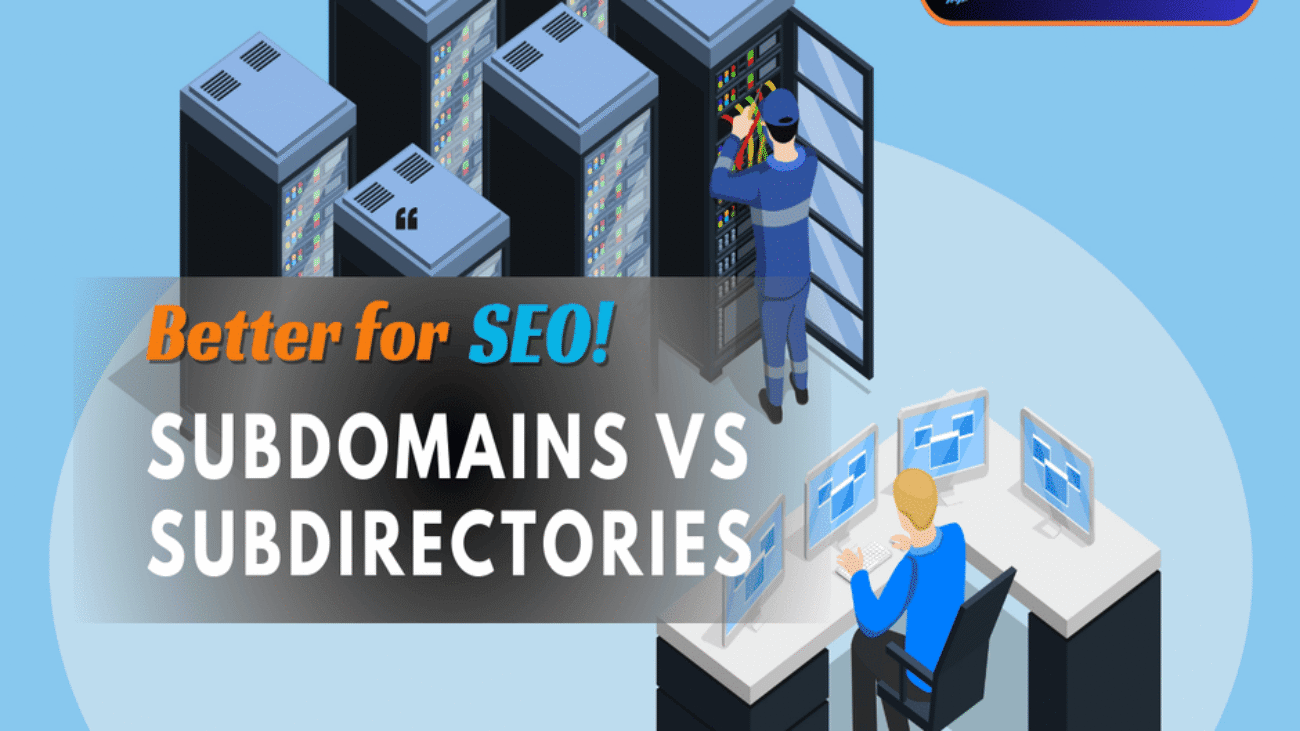
SUBDOMAINS VS SUBDIRECTORIES

As indicated by Google, subdomains, and subdirectories are viewed as equivalent with regards to ordering and positioning. All things considered, certifiable contextual analyses show that subdirectories will generally rank quicker and more effectively than subdomains on the primary page of the search engine results page (SERPs).

In the video, didn’t find what you were looking for?  I’ll tell you every aspect in detail about subdomains and subfolders. Continue reading the article.

Table of Contents

What is a Subdomain and What is a Subdirectory

Your domain is the main address of your website. A subdomain is a part of a larger domain, typically representing a specific section or function of the main website. It shows up as a prefix to the main domain name and is isolated by a period. For instance, in "blog.example.com", "blog" is the subdomain.

On the other hand, a subdirectory is a directory within the main domain that houses specific content or sections of a website. It appears as an extension to the main domain name separated by a forward slash. For example, in "example.com/blog", "blog" is the subfolder.

Why and When to use Subdomains

Subdomains are mainly used to segregate the parts of a business operations. There are various reasons that a business could choose to segment one part of its operations from another using a subdomain.

Why and When to use Subfolders

Managing different subdomains can be tricky. You also need to update your subdomains with fresh content regularly. Subfolders/Subdirectories are ideally suited for new businesses that don't deliver various kinds of content and need to focus on deftness and execution.

Differences between subdomains and subdirectories

A subdomain is part of your main domain for some specific function. A subdirectory is a subfolder inside the main domain.

Let's derive the main differences between these two.

  1. URL structure - The URL of a subdomain looks like “subdomain.example.com”, but the URL of a subdirectory looks like “example.com/subdirectory”. Where "example.com" is the main domain.
  2. Indexing and SEO - Web crawlers treat subdomains and subdirectories diversely when it comes to indexing and ranking. Where subdomains can treated as a different domain other than the main domain but in the case of subdirectories, it can treated as part of the main domain.